
Data protection in EtherAssist
EtherAssist includes data protection features that help users and administrators reduce accidental exposure when working with conversations, redaction, exports, and retention actions.
Before you begin
- Sign in with an account that has access to this area.
- Confirm the organisation, tenant, or source material you need to work with.
- Keep customer data, secrets, and screenshots within your organisation's handling policy.
Prerequisites
- An EtherAssist account with the required role for the data action.
- Internal approval before exporting or purging data.
- A clear retention or handling requirement for the content being reviewed.
User responsibilities
- Do not paste passwords, private keys, access tokens, or unrelated personal data.
- Review generated content before sharing.
- Use redaction where available.
- Keep exports inside approved channels.
- Delete or purge content only when policy and legal requirements allow it.
Export and purge conversation data
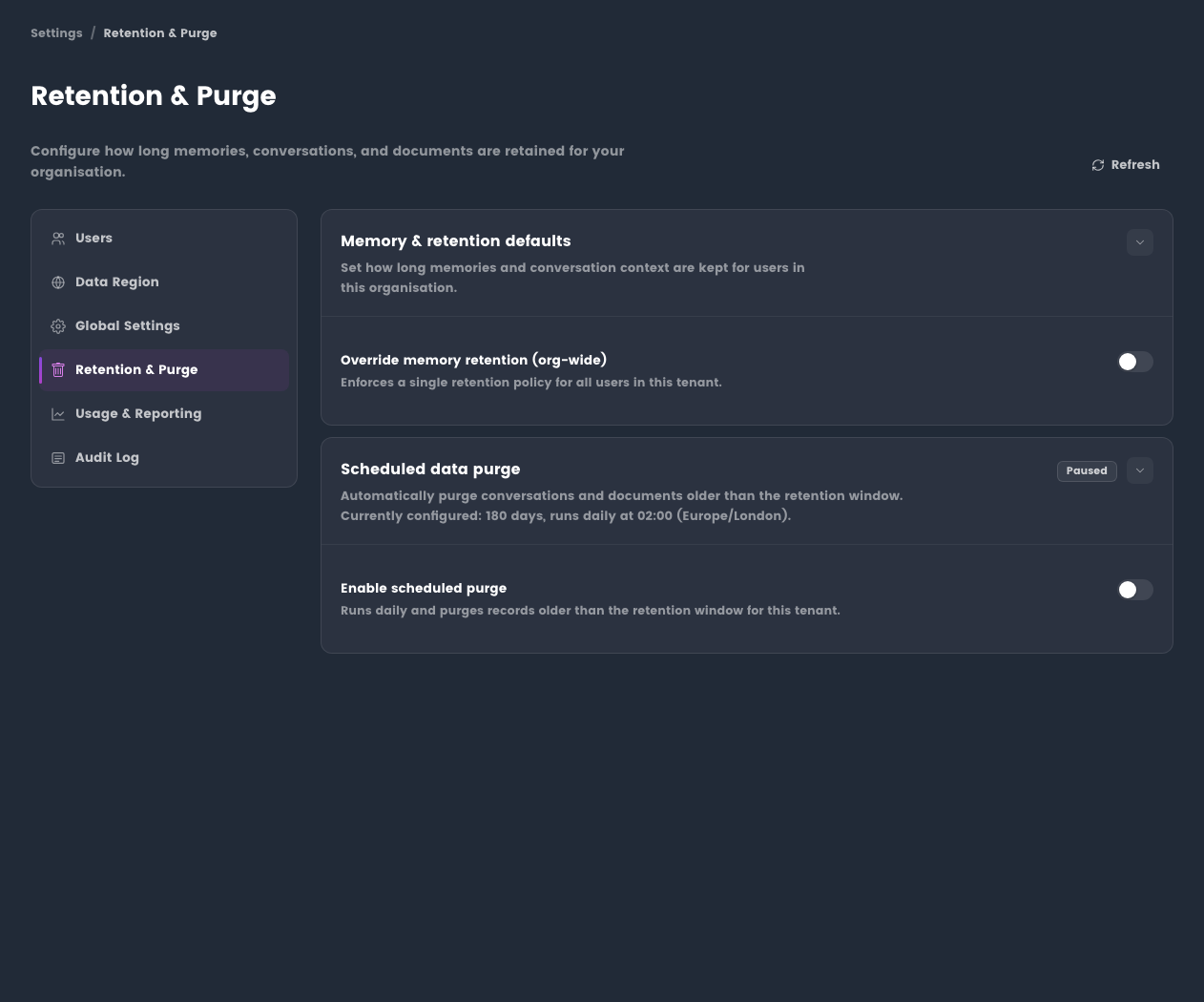
Administrators may have options to export or purge conversation data depending on plan and policy.
- Open the relevant administration area.
- Review the available export or purge controls.
- Confirm scope, retention expectations, and approval before continuing.
- Store exports only in approved locations.
Use redaction
Redaction can help mask common sensitive patterns before content is reused or shared. It is not a replacement for human review.

If additional redaction is needed, use the manual redaction option where available.

Users can also enable redaction from the chat toolbar when the feature is available.

When redaction is enabled, the chat interface indicates the status.

Expected result
Sensitive content is handled with clearer review points, approved export locations, and redaction support before content is shared.
Tips
- Keep names, prompts, and configuration values specific to the task you are performing.
- Check role, subscription, region, and tenant policy when a feature is not visible.
Troubleshooting
| Issue | What to do |
|---|---|
| Export or purge options are missing | Ask an administrator to confirm role, plan, and organisation policy. |
| Redaction did not catch something | Manually redact the content and review the output before sharing. |
| You are unsure whether content can be deleted | Confirm retention, legal, and audit requirements before purging records. |