
Zoho Desk integration
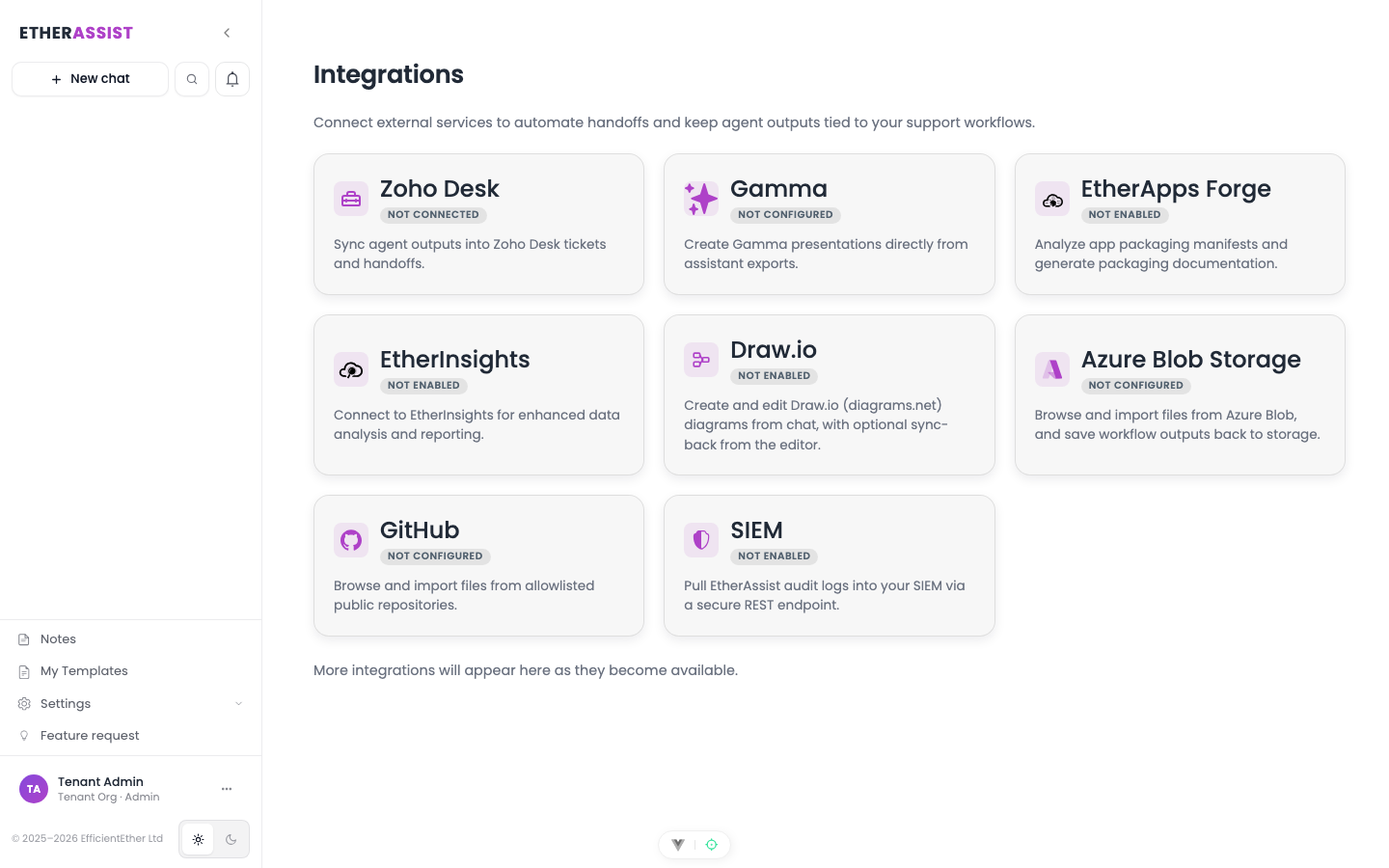
Connect Zoho Desk to let EtherAssist review support tickets, draft private notes, suggest knowledge base updates, and run scheduled support workflows.
Before you begin
- Sign in with an account that has access to this area.
- Confirm the organisation, tenant, or source material you need to work with.
- Keep customer data, secrets, and screenshots within your organisation's handling policy.
Prerequisites
- EtherAssist administrator access.
- Zoho Desk administrator access.
- A Zoho OAuth application for your EtherAssist tenant.
- Approval from your organisation to process ticket and knowledge base content with EtherAssist.
Configure Zoho Desk
- Create a server-based application in the Zoho API Console.
- Add the EtherAssist callback URL shown in Integrations → Zoho Desk.
- Copy the client ID and client secret.
- In EtherAssist, open Integrations → Zoho Desk.
- Select the Zoho region for your tenant.
- Enter the client ID and client secret.
- Save the configuration and complete the OAuth consent flow.
- Select the Zoho departments that EtherAssist can use.
Do not publish screenshots that show client IDs, secrets, tenant identifiers, ticket IDs, customer names, or email addresses.
Ticket automation
Use Zoho Desk ticket automation to review and triage support tickets.
EtherAssist can:
- review ticket title, description, and thread context;
- draft a private note;
- post a private note when you explicitly choose to do so or when a configured automation permits it;
- process a single ticket or a batch of tickets from Agent Mode.
EtherAssist does not post public replies as part of this workflow.
Knowledge base review
Use knowledge base review to inspect articles and generate update suggestions.
Depending on configuration, EtherAssist can:
- review a selected article;
- review a batch of articles;
- draft update recommendations;
- publish or post updates only when the configured workflow and user permissions allow it.
Use Zoho in Agent Mode
- Open Agent Mode.
- Start a new task.
- Select Zoho Desk tickets or Zoho Knowledge Base when available.
- Choose the ticket or article scope.
- Describe the task.
- Send the task and monitor progress in the Agent console.
Batch runs appear as one job with progress and selectable outputs.
Schedule Zoho work
Supported scheduled targets include:
- ticket review;
- ticket creation with a private note;
- knowledge base update suggestions.
See Scheduling.
Webhook triggers
Zoho webhook triggers can start configured automation when a matching ticket event occurs.
Use the webhook URL and event settings shown in Integrations → Zoho Desk → Webhook settings. Keep the generated URL private and do not paste it into public documentation or screenshots.
Limitations
- Tenant policy and Zoho permissions control what actions are available.
- Notes are private notes, not public replies.
- Large ticket threads may be summarized or limited.
- Scheduled and automatic posting should be reviewed carefully before enabling in production.
Disconnect Zoho
- Open Integrations → Zoho Desk.
- Select Disconnect.
- Confirm the action.
Disconnecting removes EtherAssist access to Zoho for new operations.
Tips
- Keep names, prompts, and configuration values specific to the task you are performing.
- Check role, subscription, region, and tenant policy when a feature is not visible.
Next steps
Troubleshooting
| Issue | What to check |
|---|---|
| Integration is not visible | Confirm the integration is enabled for your tenant, plan, and role. |
| Connection or save fails | Check admin permissions, credentials, OAuth consent, callback URLs, and tenant policy. |
| Test content does not appear | Reconnect the integration and test with a small non-sensitive sample item. |