
Scheduling and automation
Scheduling lets agent tasks run automatically for recurring work such as weekly reviews, customer reports, compliance evidence checks, or overnight ticket preparation.
Before you begin
- Run the task or workflow manually and confirm it completes successfully.
- Use saved source material, such as Document Manager files, rather than temporary uploads.
- Disable follow-up questions when the schedule must run without user input.
- Confirm integrations and export actions are configured before relying on the schedule.
Schedule options
| Option | Use when |
|---|---|
| One-time | Run a task at a specific time. |
| Daily | Repeat routine operational checks. |
| Weekly | Generate weekly summaries or reports. |
| Monthly | Prepare billing, compliance, or management packs. |
Create a schedule
- Open the task or workflow.
- Choose Schedule.
- Set frequency, date, time, and timezone.
- Confirm output behaviour such as artifact creation or ticket update.
- Save the schedule.
- Review the next scheduled run time.
Expected result: the task or workflow is scheduled and waits for the next configured run window.
Review scheduled runs
- Open the scheduled task or workflow.
- Check run history after the first scheduled execution.
- Review the output, attachments, integrations, and downstream actions.
- Confirm artifacts or ticket updates were created as expected.
- Adjust the schedule or prompt if the run needs changes.
Tip: Treat the first scheduled run as validation before using the schedule for customer delivery.
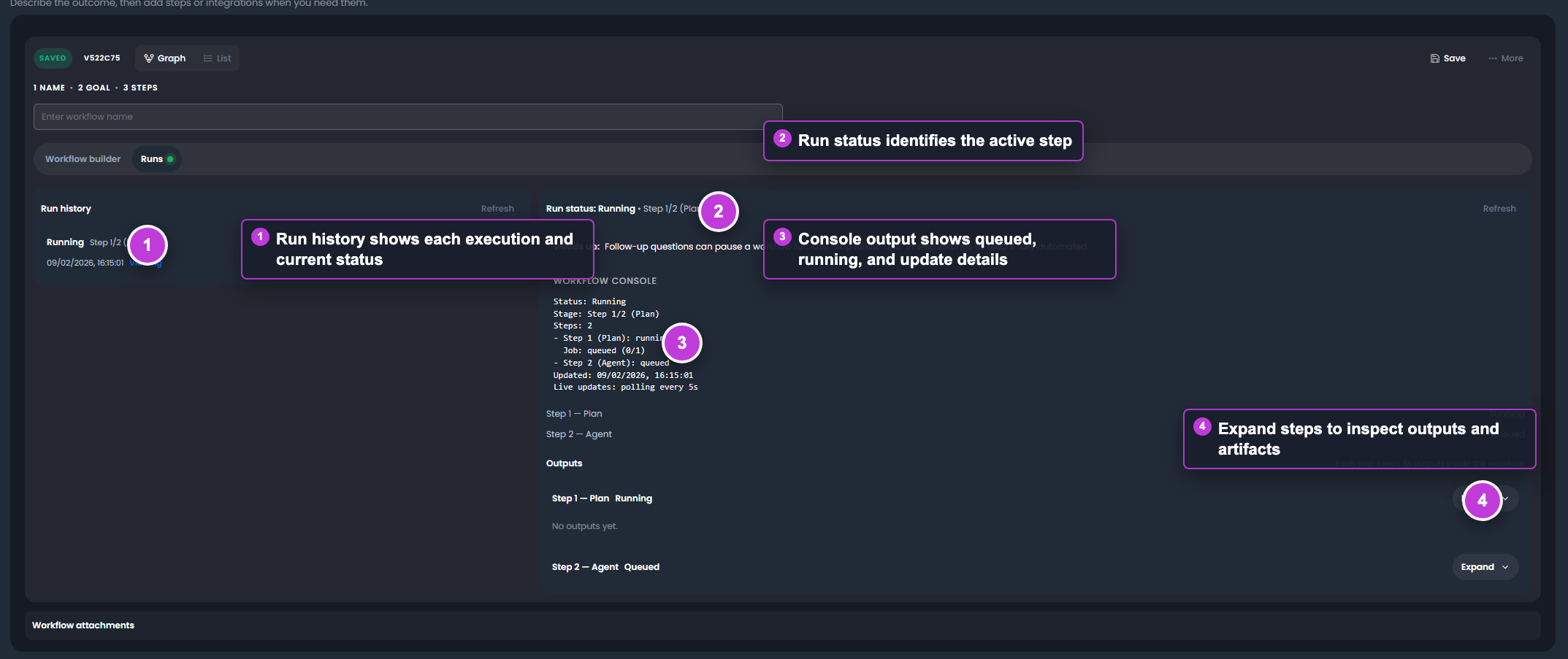
The callouts show run history, current step status, console output, and expandable step artifacts.
Tips
- Keep names, prompts, and configuration values specific to the task you are performing.
- Check role, subscription, region, and tenant policy when a feature is not visible.
Troubleshooting
| Problem | What to check |
|---|---|
| Schedule did not run | Confirm the schedule is enabled and the next run time is correct for the selected timezone. |
| Scheduled run is waiting | Disable follow-up questions or update the prompt so the job can continue with known assumptions. |
| Scheduled run failed | Check integration credentials, source files, and action configuration. |
| Output is stale | Confirm the schedule uses saved source files or live integration context rather than old temporary attachments. |