
Agent integrations
Agent Mode can use connected sources and actions when the organisation has configured them.
Before you begin
- Confirm the integration is configured in the Integrations area.
- Check that your account has permission to use the connected source or action.
- Decide whether the integration should provide source context, create an output, or update another system.
Integration types
| Type | Examples | Use for |
|---|---|---|
| Document sources | GitHub, Azure Blob Storage, Document Manager | Add files and repository content as task context. |
| Ticketing actions | Zoho Desk | Create or update support tickets and notes. |
| Analytics context | EtherInsights | Add tenant-scoped reporting context where configured. |
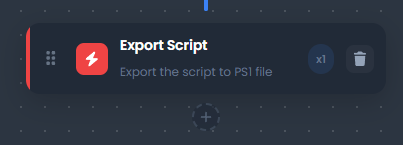
| Export actions | DOCX, PDF, ZIP, Markdown, CSV | Produce downloadable workflow artifacts. |
Important distinction
Some integrations provide files or context rather than a task dropdown action. For example, GitHub and Azure Blob Storage are usually selected as document sources for the task or workflow.
Add an integration source to a task
- Open Agent Mode.
- Create or open a task.
- Attach files from Document Manager or a connected source.
- Write the task prompt so it explains how the source should be used.
- Run the task.
- Review the output and source references before sharing it.
Expected result: the selected source is used as task context without exposing unrelated tenant data.
Add an integration action to a workflow
- Open the workflow builder.
- Add an Action step after the step that produces the source output.
- Select the configured integration or export action.
- Choose the source step output.
- Configure the action-specific options.
- Run the workflow manually.
- Review the action result and any generated artifact.
Expected result: the workflow performs the configured action during the run and records the outcome in the run history.
Notes
Integration setup is managed in the Integrations section. Agent Mode only shows actions and sources that are available to the signed-in user.
Do not add customer or ticket data unless the user is authorised to access it and the task requires it.
Tips
- Keep prompts, filters, and configuration values specific to the task you are performing.
- Check role, subscription, region, and tenant policy when a feature is not visible.
Troubleshooting
| Problem | What to check |
|---|---|
| Integration does not appear | Confirm it is configured and enabled for the organisation. |
| Source files are missing | Check the connected repository, storage container, or Document Manager permissions. |
| Action fails | Review the integration connection, required fields, and source step output. |
| Ticket or export action used the wrong content | Reopen the Action step and confirm the selected source output. |