
Usage reporting
Usage reporting helps administrators understand how EtherAssist is being used across the organisation.
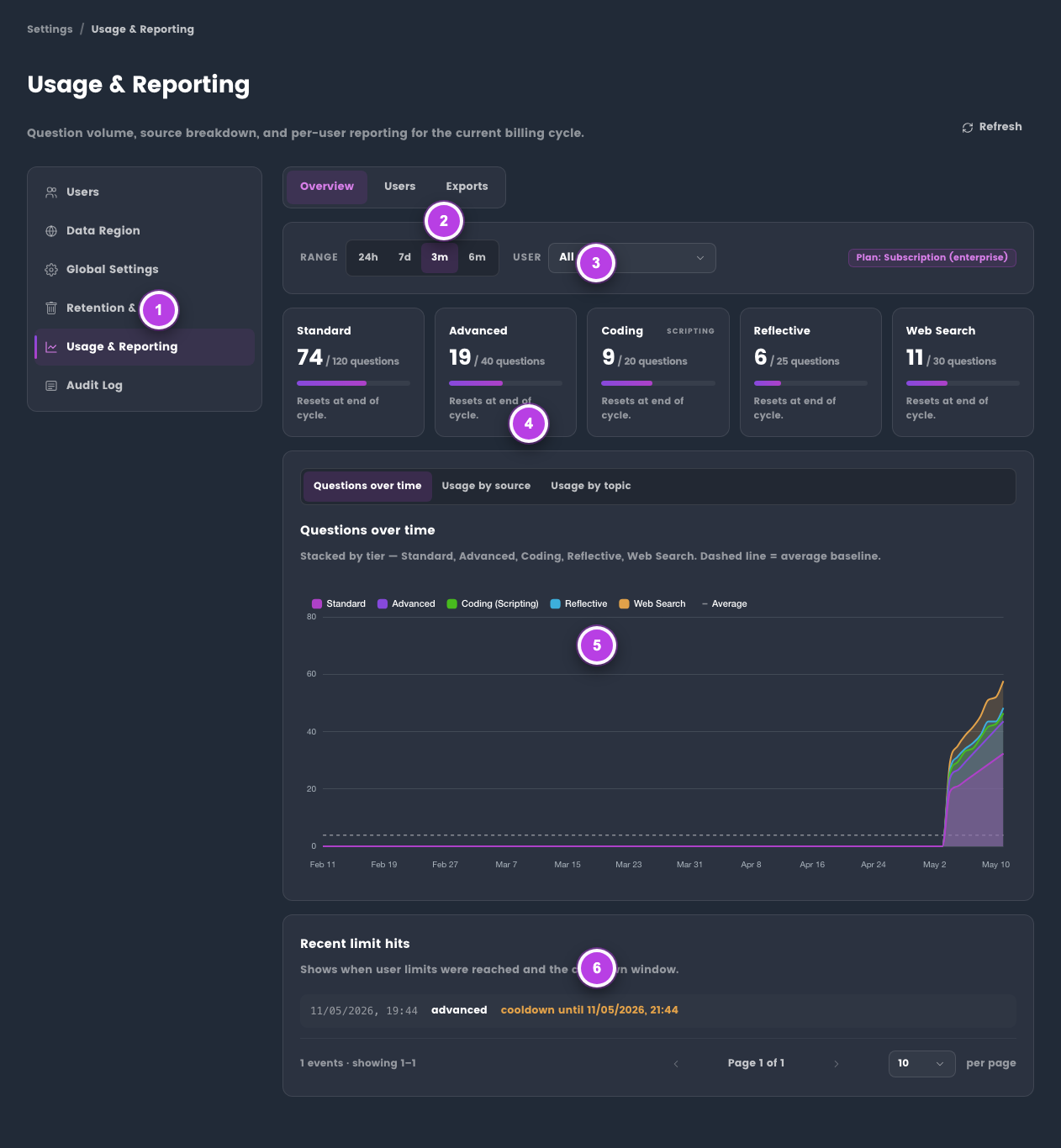
The numbered pins show the key reporting areas.
| Pin | Area | Use it to |
|---|---|---|
| 1 | Administration navigation | Open Usage & Reporting from the administration settings. |
| 2 | View selector | Switch between Overview, Users, and Exports. |
| 3 | Range and user filters | Choose the reporting window and user scope. |
| 4 | Model usage cards | Review question use against model limits. |
| 5 | Chart tabs | Compare trends over time, by source, or by topic. |
| 6 | Recent limit hits | Check limit events before changing quotas. |
Before you begin
- Sign in with an administrator account.
- Choose the reporting period you want to review.
- Decide whether you need user-level detail or an aggregate view.
Review usage
- Open Administration → Usage Reporting.
- Choose the reporting period.
- Review the overview cards for model-level question usage.
- Use the chart tabs to compare usage over time, by source, or by topic.
- Open Users when you need per-user activity.
- Open Exports only when the data needs to be reviewed outside EtherAssist.
Expected result: you can see who is using EtherAssist, which models or topics are being used, and whether any quota or adoption action is needed.
Choose the right view
| Need | Use |
|---|---|
| Total activity and billing-cycle trends | Overview |
| Per-user question counts and recent activity | Users |
| Exportable data for finance, audit, or adoption review | Exports |
| Model usage by tier | Overview model cards |
| Usage trends by source or topic | Chart tabs |
Export usage
Use CSV export when the data needs to be reviewed outside EtherAssist. Do not publish exports externally unless they have been checked for user-identifying data.
- Open Exports.
- Confirm the reporting period and filters.
- Export the CSV.
- Store or share the file according to your organisation's data-handling policy.
Tips
- Compare usage before and after a training or rollout event.
- Review model usage if costs or response depth need adjustment.
- Use quota pages alongside usage reporting; usage explains behaviour, quotas enforce limits.
- Treat exported reports as user-identifying data unless they have been anonymised.
Troubleshooting
| Issue | What to check |
|---|---|
| Usage looks lower than expected | Confirm the date range, filters, and whether users are active in the selected organisation. |
| Export is missing rows | Remove filters or widen the reporting period before exporting again. |
| Cost review needs more detail | Compare model usage, quota settings, and subscription plan before changing limits. |