
Agent console and monitoring
The Agent console shows task progress, run history, reasoning updates where enabled, outputs, and artifacts.
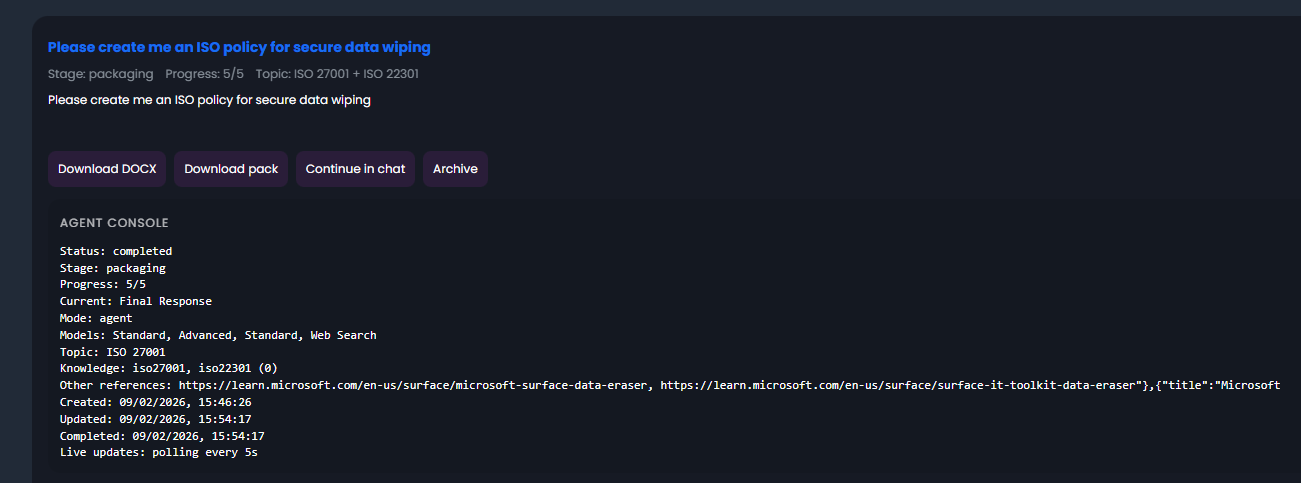
Before you begin
- Start or open an agent task or workflow.
- Confirm you have access to the task, workflow, and any connected integration records.
- Keep the source prompt and attachments available if you need to retry a failed run.
Monitor a run
- Open Agent Mode.
- Select the task or workflow from the console list.
- Check the run status.
- Review streamed progress and step-level updates.
- Open generated outputs or artifacts.
- Use run history to compare the latest run with earlier attempts.
Expected result: you can see whether the run is queued, running, waiting for input, completed, failed, or cancelled.
Review the console areas
| Area | What to check |
|---|---|
| Status | Queued, running, waiting for follow-up, completed, failed, or cancelled. |
| Progress | Streaming output, reasoning updates where enabled, and step-level updates. |
| Artifacts | Generated files, exports, workflow outputs, or ticket notes. |
| History | Earlier runs, follow-up attempts, retry outcomes, and workflow versions. |
Take action on a run
- Open the run.
- Review the latest output and any warning or error message.
- Continue the result in chat when you need interactive refinement.
- Retry or rerun when the prompt, files, or integration state has changed.
- Download artifacts created by workflow actions.
- Archive completed work that no longer needs to appear in the active task list.
Tip: Keep completed work until the user or customer has confirmed the output. Archive after handover rather than deleting immediately.
Tips
- Keep names, prompts, and configuration values specific to the task you are performing.
- Check role, subscription, region, and tenant policy when a feature is not visible.
Troubleshooting
| Problem | What to check |
|---|---|
| Run is queued | Another run may still be active, or the worker may not have picked it up yet. Wait briefly, then retry if the status does not change. |
| Run is waiting | Answer the follow-up question, or rerun with follow-ups disabled when the job must run unattended. |
| Run failed | Review the error, attached inputs, model selection, and workflow step that failed. |
| No artifact appears | Confirm the workflow includes an Action or export step and that the action points to the correct source output. |
| Output is incomplete | Reduce attachments, narrow the prompt, or split the work into smaller task or workflow steps. |
Known issues
Long-running document packs should preserve partial progress where supported. Review the run history before restarting a large pack so you do not miss completed outputs.