
Build workflows
Workflows chain multiple steps together. Use them when a task needs planning, multiple model calls, branching, exports, or integration actions.
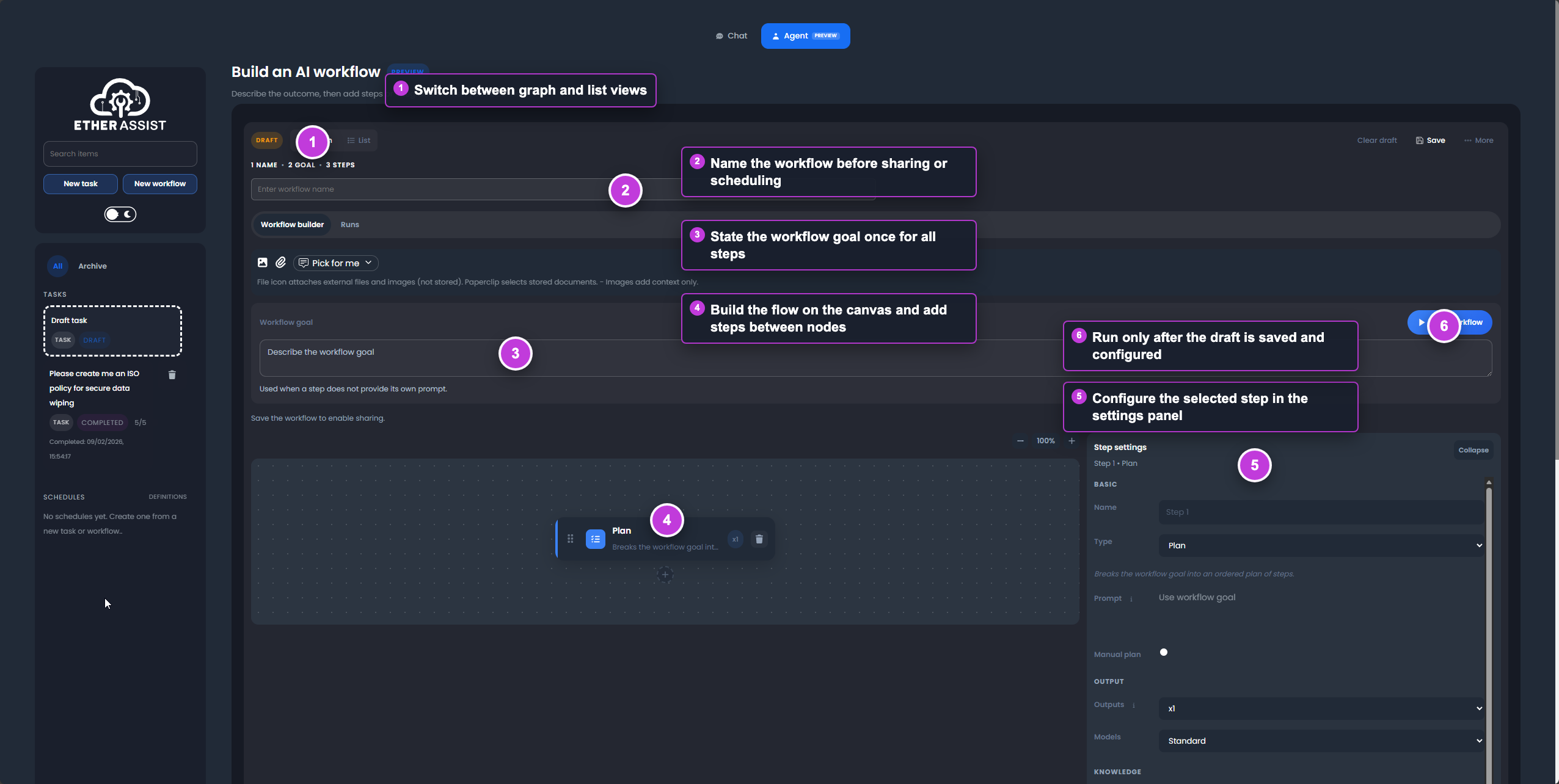
The callouts identify the view switcher, workflow name, workflow goal, canvas, step settings, and run control.
Before you begin
- Run the task manually once before turning it into a workflow.
- Identify the input, review point, output, and export destination.
- Confirm that required integrations are configured.
- Decide whether the workflow may pause for follow-up questions.
Workflow and task comparison
| Use a task when | Use a workflow when |
|---|---|
| The work has one main prompt. | The work has multiple steps. |
| You do not need branching. | You need conditions, joins, or review points. |
| One output is enough. | Each step may need its own model, topic, attachments, or output. |
| You want a quick background job. | You want a reusable process that can be saved, shared, scheduled, or rerun. |
Step types
| Step type | Purpose |
|---|---|
| Plan | Break the workflow goal into an ordered plan. Can also use a manual plan. |
| Ask | Ask for information or clarification as part of the workflow. |
| Agent | Generate content, analysis, documents, or document packs. |
| Condition | Route the workflow using Yes, No, or default paths. |
| Action | Export, publish, upload, import, or run an integration action. |
| Join | Merge branches and wait for all or any inbound paths, depending on join mode. |
Create a workflow
- Open Agent Mode.
- Select the workflow view.
- Create a workflow or open an existing one.
- Add steps to the canvas.
- Configure each step.
- Connect steps or use the automatic sequential flow.
- Save the workflow.
- Run the workflow manually before scheduling it.
Expected result: the workflow is saved and has at least one successful manual run before it is shared or scheduled.
Configure a step
Common step settings include:
- Name - A readable label for the step.
- Prompt - A step-specific instruction, or blank to use the workflow goal.
- Outputs - One or more outputs for model comparison.
- Models - The model used by that step.
- Synthesize - Combine multiple outputs into one result.
- Topic - Inherit from the workflow or override for the step.
- Attachments - Inherit workflow attachments or use step-specific documents, files, or images.
- Diagrams - Allow diagram generation when it helps the answer.
- Skip follow-ups - Continue with reasonable assumptions instead of pausing for clarifying questions.
Use document packs
For Agent steps, enable Generate separate documents when the workflow should produce a pack of documents instead of one combined answer.
This is useful for:
- policy packs;
- control-by-control documents;
- project document sets;
- troubleshooting bundles.
Action steps can then export the pack, including ZIP/DOCX pack downloads where supported.
Add branching
Use a Condition step to route a workflow.
- Add a Condition step after the step that produces the decision input.
- Describe the condition clearly.
- Connect Yes, No, and optional default paths.
- Add a Join step if branches need to merge before continuing.
Keep conditions specific. For example, use "Does the draft include a rollback plan?" rather than "Is this good?"
Action steps
Action steps use a source step output or the latest prior output.
Supported action categories include:
| Category | Examples |
|---|---|
| Exports | DOCX, PDF, Markdown, TXT, CSV, JSON, YAML, PowerShell, shell script, SVG, PNG. |
| Zoho Desk | Create a ticket, post a private note, or publish/update knowledge base content when configured. |
| Azure Blob Storage | Import files or upload workflow output when configured. |
| EtherInsights | Run configured EtherInsights actions or queries. |
| Gamma | Generate configured presentation or document outputs when enabled. |
Available actions depend on tenant configuration and permissions.
Add an export action
- Add an Action step after the step that creates the output.
- Select the export action.
- Choose the file format.
- Select the source step output.
- Run the workflow.
- Download the generated artifact from the run output.
Expected result: the workflow produces the export during the run, so users do not need to manually format the result in the browser.
Run and monitor a workflow
- Save the workflow.
- Select Run.
- Watch progress in Running status.
- Answer follow-up questions if the workflow pauses.
- Review per-step outputs and artifacts.
- Use Run history to review previous executions.
Workflow states can include queued, running, waiting for follow-up, paused by quota, completed, failed, or cancelled.
Manage workflows
Depending on your role, you can:
- save workflow changes;
- branch or version a workflow;
- share a workflow with selected users;
- rerun previous runs;
- cancel active runs;
- delete workflows that are no longer needed.
Shared workflows are visible to selected users. Editing is limited to the owner or administrators.
Example workflow
1. Plan - Create the policy outline.
2. Ask - Gather missing assumptions.
3. Agent - Draft the policy.
4. Condition - Check whether rollback and evidence sections are present.
5. Agent - Revise if the condition fails.
6. Action - Export DOCX and save the final output.
Troubleshooting
| Problem | What to check |
|---|---|
| Workflow is waiting | Review follow-up questions or enable Skip follow-ups for automated runs. |
| Step failed | Open the failed step output and simplify the prompt, attachments, or integration settings. |
| Action is unavailable | Confirm the integration is configured and allowed by tenant policy. |
| Export has no content | Check that the Action step points to a step that produced output. |
| Scheduled workflow did not run | Confirm the workflow is saved, schedule is enabled, and required integrations are connected. |
Tips
- Keep each step responsible for one outcome.
- Name steps with verbs, such as
Draft policy,Check gaps, orExport pack. - Put review or decision points before Action steps.
- Use a Join step when branches must come back together before export.
- Keep workflow prompts reusable; put one-off context in attachments or run input.