
Create agent tasks
Agent tasks help you run larger work with a clear goal, selected context, streamed progress, and persistent output history.
Before you begin
- Decide what the task should produce.
- Gather the files or integration records the task needs.
- Choose whether the run may ask clarifying follow-up questions.
- Use a title that helps you find the task later.
Create a task
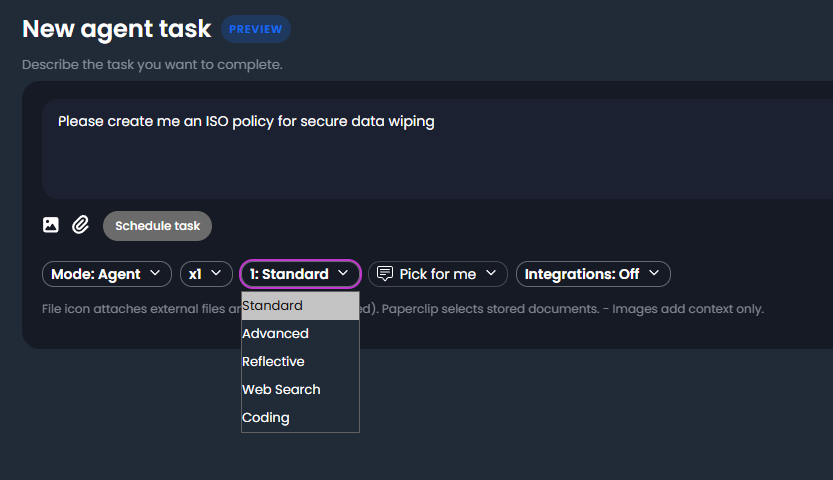
- Open Agent Mode.
- Select New task.
- Enter a short task title.
- Write the task prompt.
- Choose a model such as Fast, Standard, Advanced, Reflective, or Coding.
- Attach documents, scripts, images, or integration sources if needed.
- Select topic or persona settings if they are relevant.
- Run the task.
- Review streamed progress while the run executes.
- Open the final output and check it before sharing or exporting it.
Expected result: the run is saved under the task with the prompt, context, status, and output.
Write the task prompt
Use this structure:
Goal: [what the task must produce]
Audience: [who will read or use it]
Sources: [files, ticket, notes, or other context]
Output: [format and sections]
Rules: [constraints, exclusions, or review standards]
Missing information: [ask questions or mark unknowns]
Example:
Goal: Review the attached ISO 27001 access-control evidence and create a gap summary.
Audience: Internal compliance manager.
Output: Markdown table with control, evidence found, gap, risk, recommended action, and owner question.
Rules: Do not claim compliance. Mark missing information as "Not evidenced".
Missing information: Ask clarifying questions if the evidence is not enough to assess a control.
Add files and sources
- Attach only the documents required for the task.
- Use Document Manager files for reusable source material.
- Use integrations only when they are configured and relevant.
- Confirm that file names are understandable before starting the run.
Tip: For large packs, split the work by document, control, or section so the run can make steady progress.
Use follow-up runs
Use a follow-up run when you want to refine the previous output without rebuilding the whole task.
- Open the task.
- Review the latest run output.
- Add a follow-up instruction.
- Keep the title unchanged unless the task purpose has changed.
- Run the follow-up.
Expected result: the task keeps a history of the original run and the refinement runs.
Tips
- Keep names, prompts, and configuration values specific to the task you are performing.
- Check role, subscription, region, and tenant policy when a feature is not visible.
Troubleshooting
| Issue | What to do |
|---|---|
| The task is waiting | Answer the follow-up question or rerun with follow-ups disabled if the task must be autonomous. |
| The output is too generic | Add source files, a topic, or a more specific audience and format. |
| The run failed | Reduce attachments, simplify the prompt, and retry. |
| The task used the wrong tone | Select a persona or add a style rule to the prompt. |