
Creating diagrams
EtherAssist can turn clear architecture, process, and workflow prompts into editable diagrams. Use this guide to enable diagram output, write a useful diagram request, and refine the result.
Before you begin
- Decide what type of diagram you need, such as a process flow, sequence, architecture, or deployment view.
- Identify the audience and level of detail.
- Include only approved system names and customer-safe details.
- Use vertical process or sequence flows for complex operational procedures.
Enable diagrams
- Open a chat.
- Open the composer options or main menu.
- Enable the diagram option when the request needs a visual output.
- Confirm the diagram indicator is active before sending the prompt.
Expected result: EtherAssist returns a text answer plus a diagram block when the request is visual.
Create a diagram prompt
- State the diagram type.
- List the systems, actors, or stages that must appear.
- Describe the direction of the flow.
- Ask for a clean layout and short labels.
- Add constraints, such as excluding secrets, internal endpoints, or customer identifiers.
Example prompt:
Create a vertical process diagram for a password breach response. Show user report, service desk triage, account containment, password reset, MFA review, evidence capture, and closure. Keep labels short and include decision points for suspected compromise.
Review and refine the diagram
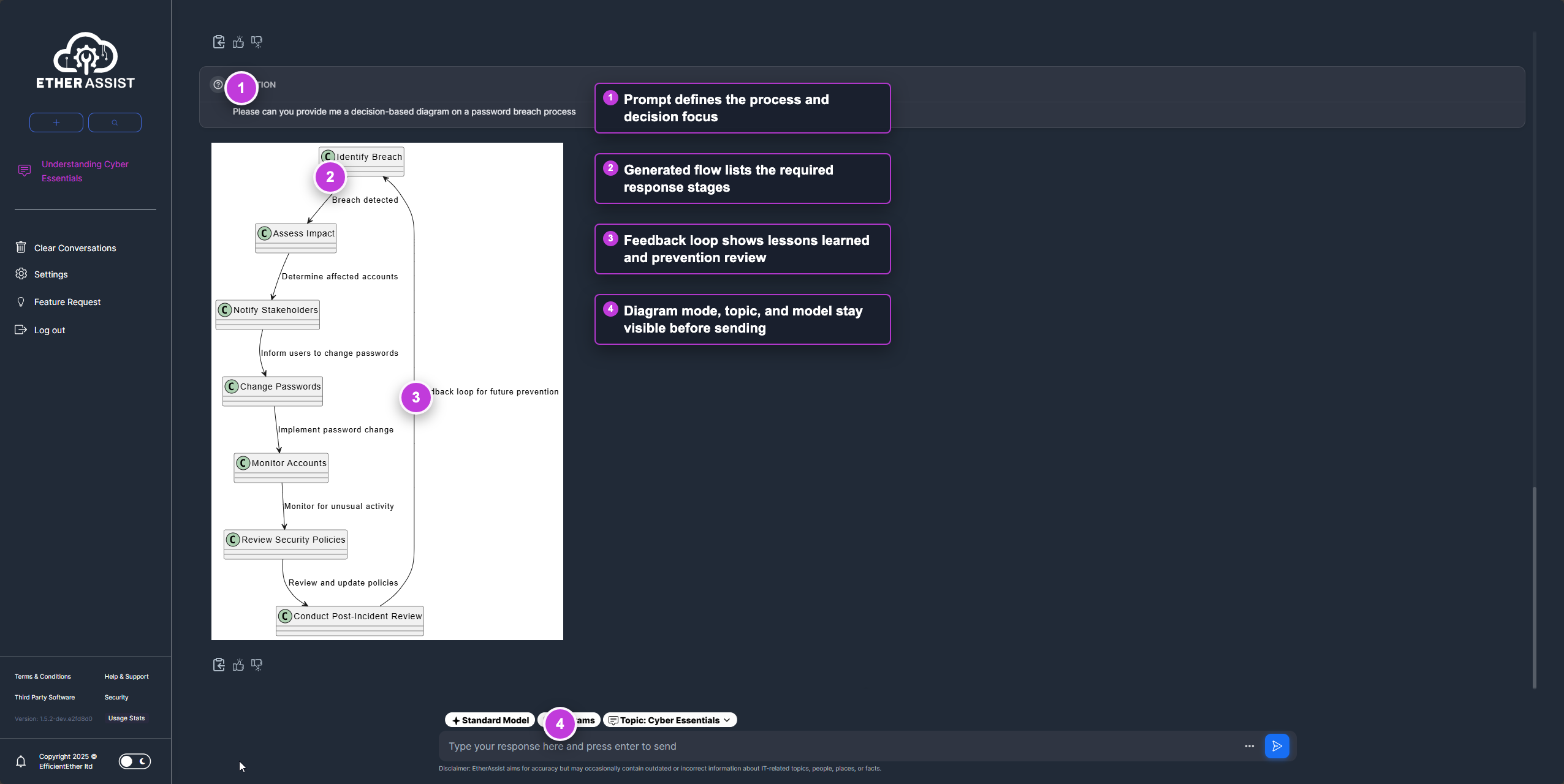
The numbered callouts show the prompt, generated flow, feedback loop, and active diagram controls.
- Check that every required stage appears.
- Confirm arrows flow in the expected direction.
- Ask EtherAssist to simplify labels if the diagram is crowded.
- Ask for a different structure if the first layout is hard to read.
- Export or copy the final output only after reviewing the text and diagram together.
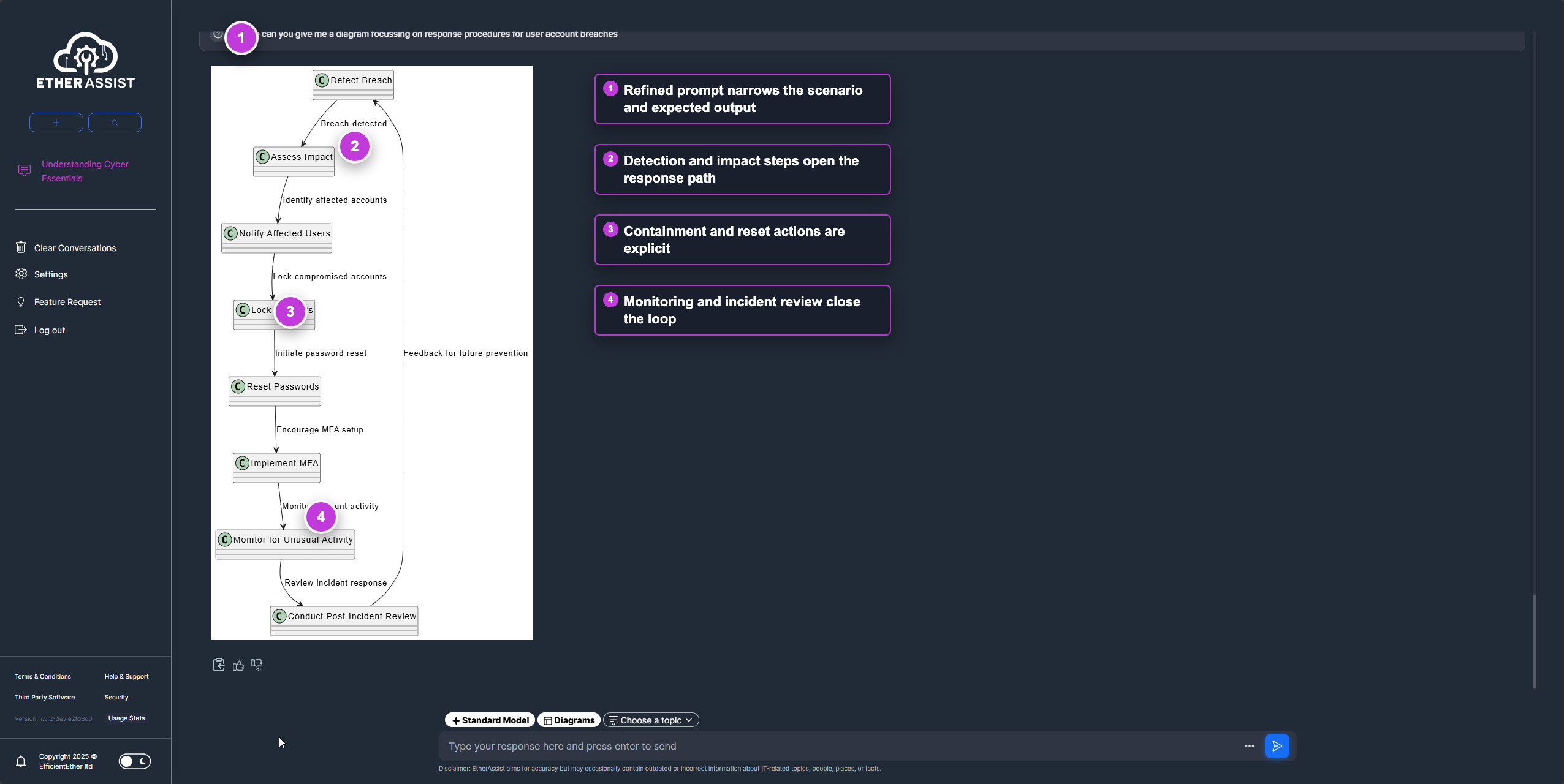
Use the numbered areas to compare the refined prompt with the clearer response stages.
Tips
- Prefer ordered activity diagrams for long process flows.
- Use sequence diagrams for interactions between people, systems, and services.
- Avoid asking for every possible detail in one image.
- Keep sensitive architecture details out of public or shared diagrams.
Troubleshooting
| Issue | What to check |
|---|---|
| Diagram is too dense | Ask for fewer nodes, shorter labels, or a phased diagram. |
| Important step is missing | List the required steps explicitly and ask EtherAssist to regenerate. |
| Output is text only | Confirm the diagram option is enabled and the prompt asks for a visual diagram. |
| Layout is hard to follow | Ask for a vertical activity diagram or sequence diagram. |