
Templates
Templates save reusable prompts and standard request patterns. Use templates for repeated support responses, policies, procedures, scripts, diagrams, and compliance drafts.
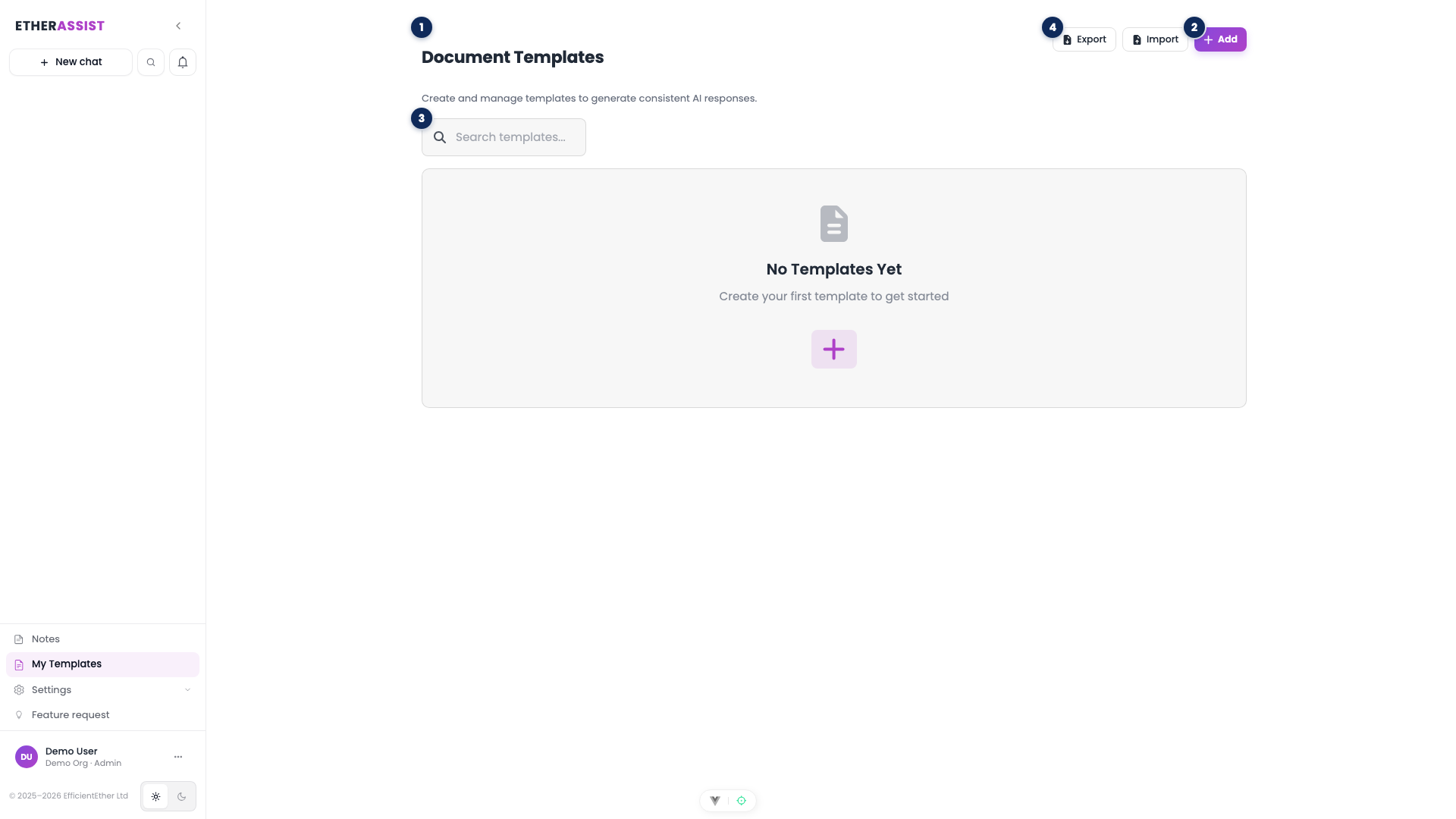
The numbered pins show the main controls on the templates page.
| Pin | Area | Use it to |
|---|---|---|
| 1 | Templates heading | Confirm you are on the templates page. |
| 2 | Add template | Create a new template from scratch or with AI assistance. |
| 3 | Search | Find an existing template by name. |
| 4 | Import / Export | Bring templates in from a CSV or export them as a backup. |
Before you begin
- Decide the template purpose and audience.
- Remove secrets and unnecessary customer data from the template body.
- Use variables or instructions where the user should provide context.
- Choose relevant topics if the template needs specialist grounding.
Open and review templates
- Open My Templates from the sidebar.
- Review existing templates before creating a duplicate.
- Use search (pin 3) to find a template by name.
- Open a template to inspect prompt text, topics, and usage guidance.
Create a template
- Select Add (pin 2).
- Enter a clear name and description.
- Add the reusable prompt text.
- Select relevant topics if needed.
- Save the template.
- Test it in chat with a realistic but safe example.
Generate a template with AI
- From the create flow, select the AI generation option.
- Describe the template outcome and audience.
- Generate the draft.
- Review and edit the generated template.
- Save only after removing unnecessary or sensitive details.
Use a template in chat
- Open chat.
- Select the template picker.
- Choose the template.
- Fill in the task-specific details.
- Send the prompt and review the output.
Maintain templates
- Edit templates when wording, process, or policy changes.
- Delete obsolete templates only when they are no longer needed.
- Use bulk delete carefully and confirm the selected items.
Import or export templates
- Select Export to download a CSV backup.
- Select Import to bring templates in from a prepared CSV.
- Review the import preview before saving.
Troubleshooting
| Issue | What to check |
|---|---|
| Template gives inconsistent output | Add clearer instructions and required output format. |
| Template is unavailable in chat | Confirm permissions, topic visibility, and template status. |
| Import fails | Check CSV headers, required fields, and encoding. |
| Template includes sensitive data | Edit or delete it according to your internal process. |