
Profile Settings
Profile Settings controls your account details, security preferences, appearance, language and region, personal context, personas, topics, templates, and memory. Use this guide to review the settings that affect your individual experience.
Before you begin
- Sign in with the account you want to configure.
- Confirm the email address shown in User Details matches your expected account.
- Use organisation-approved wording for personal context and personas.
- Do not store secrets, passwords, or confidential customer data in profile settings.
Review account and security settings
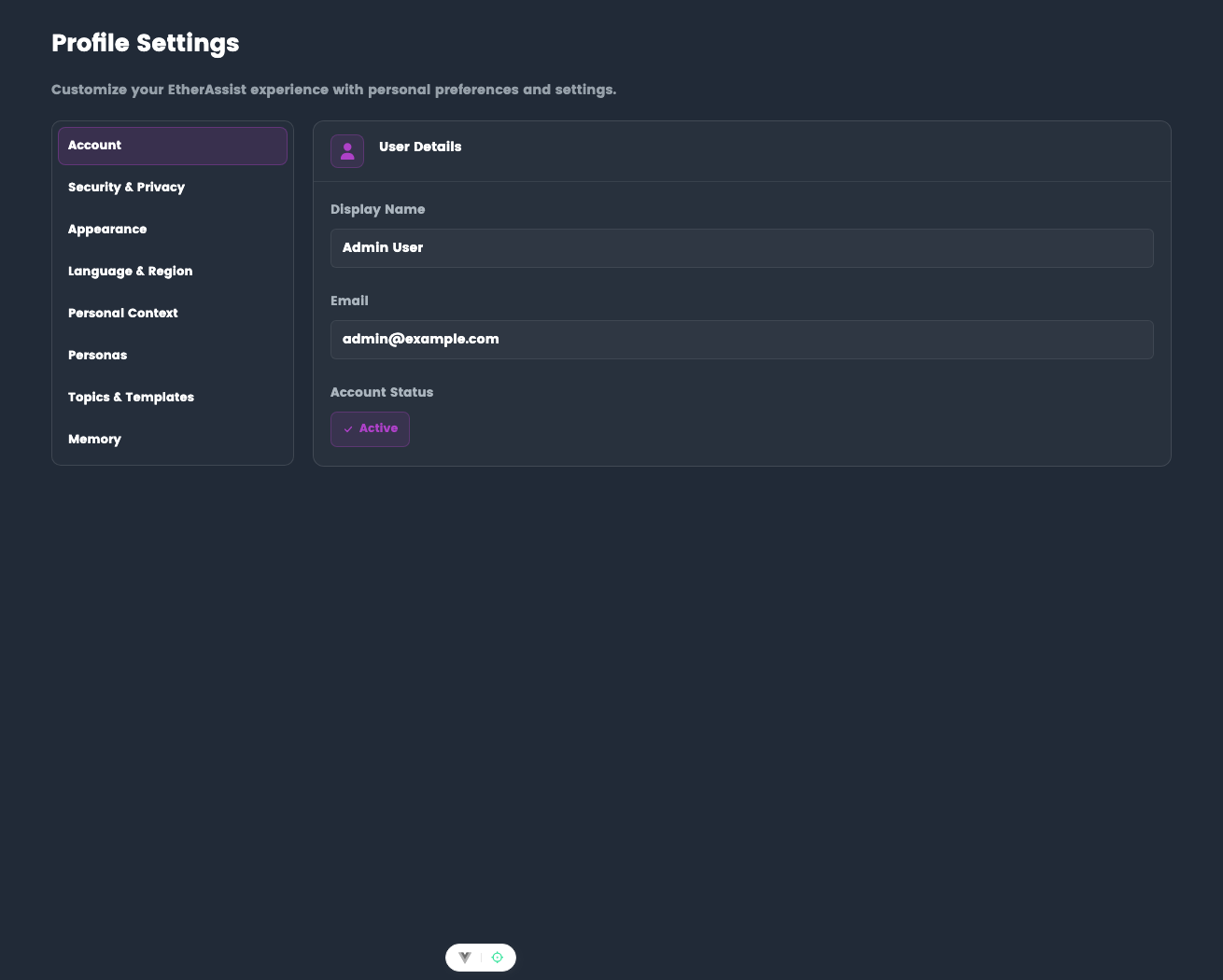
- Open Profile Settings.
- Review the account email and user details.
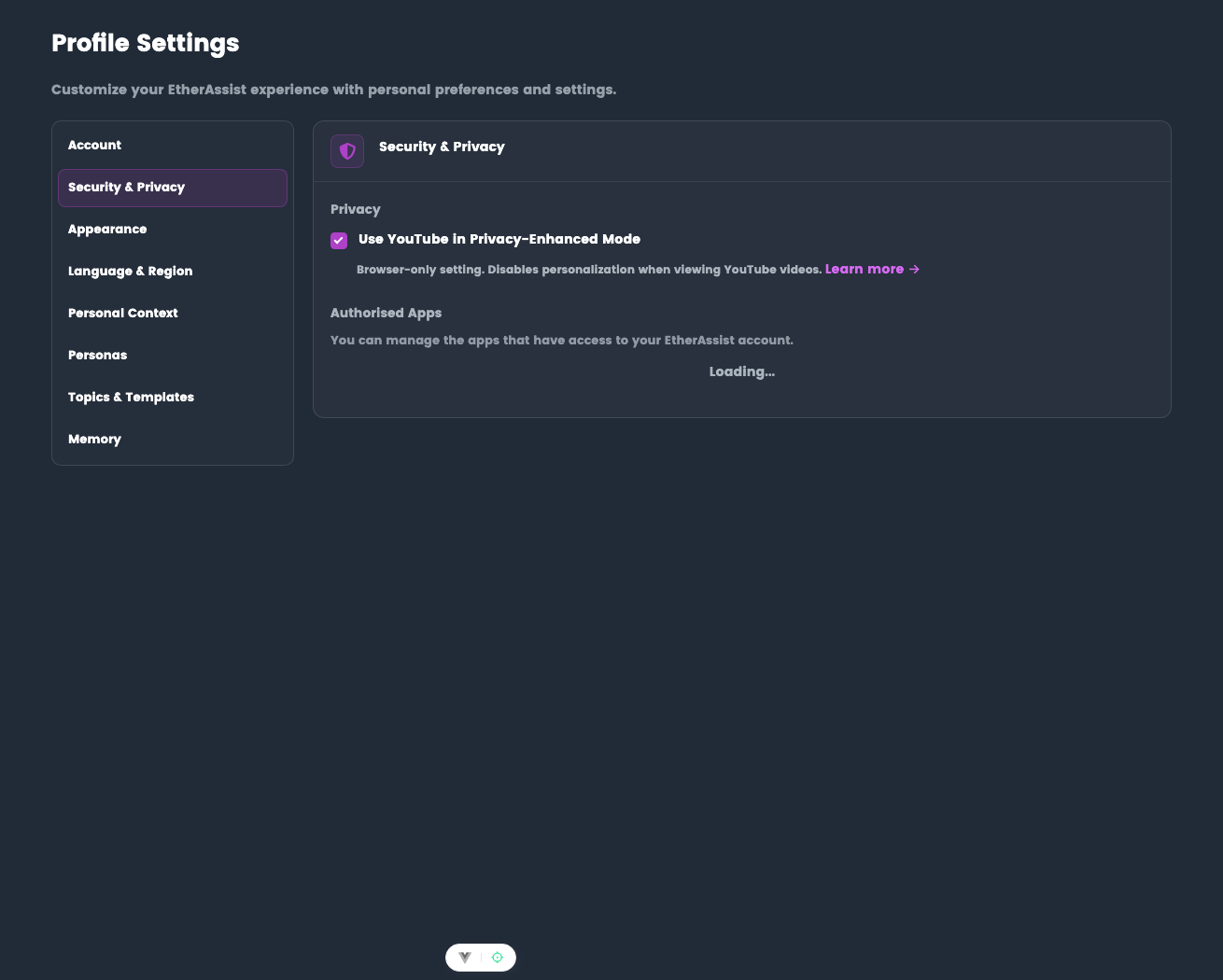
- Open Security & Privacy.
- Review available privacy controls and tenant policy indicators.
Set appearance, language, and region
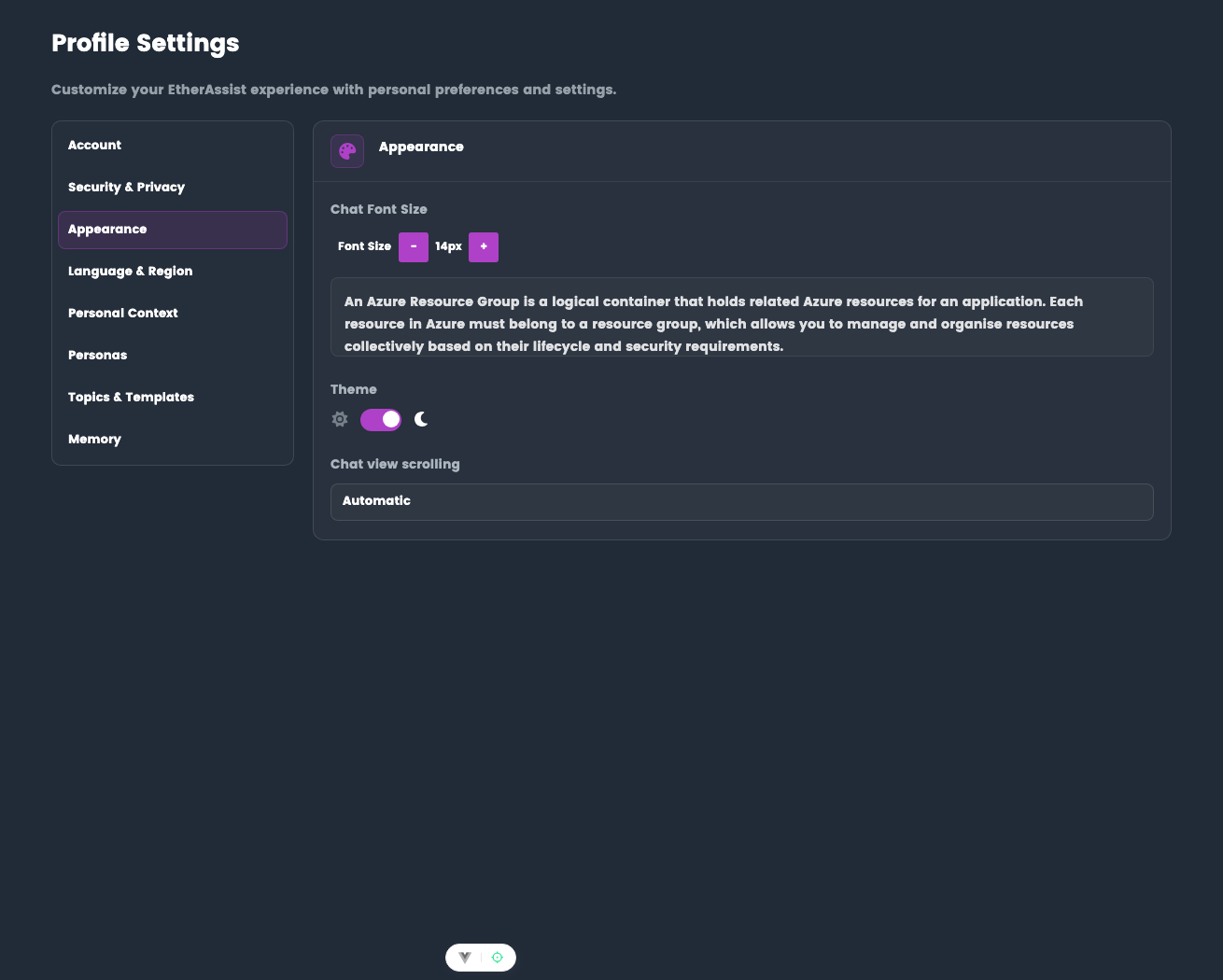
- Choose the appearance setting that works best for you.
- Confirm the layout remains readable after changing theme.
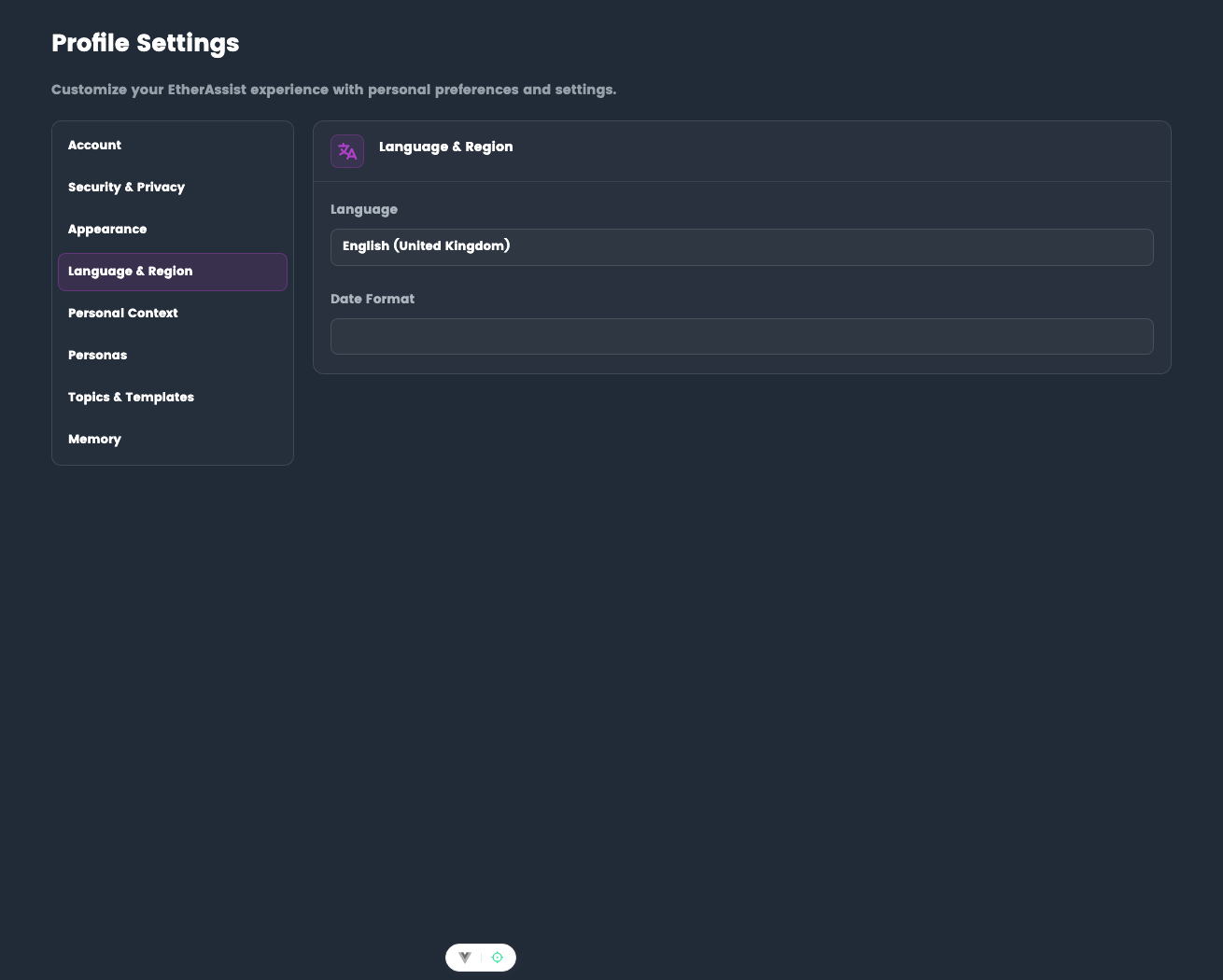
- Open language and region settings.
- Choose the preferred display language and regional preferences available to your tenant.
Add personal context
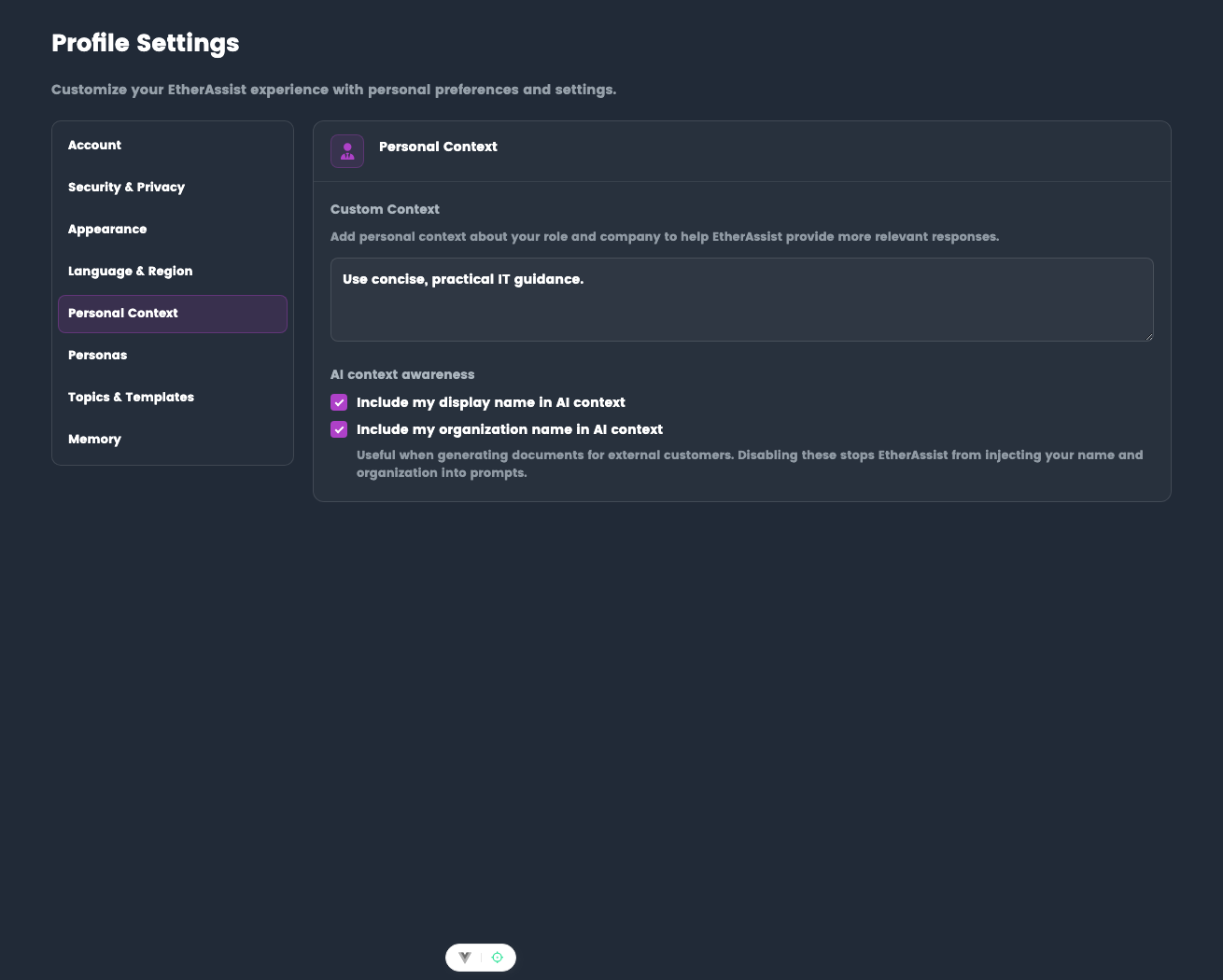
- Open Personal Context.
- Add concise details that help EtherAssist tailor responses, such as role, writing style, or common audience.
- Keep context professional and customer-safe.
- Save the change.
- Start a new chat to confirm the context is considered where relevant.
Manage personas
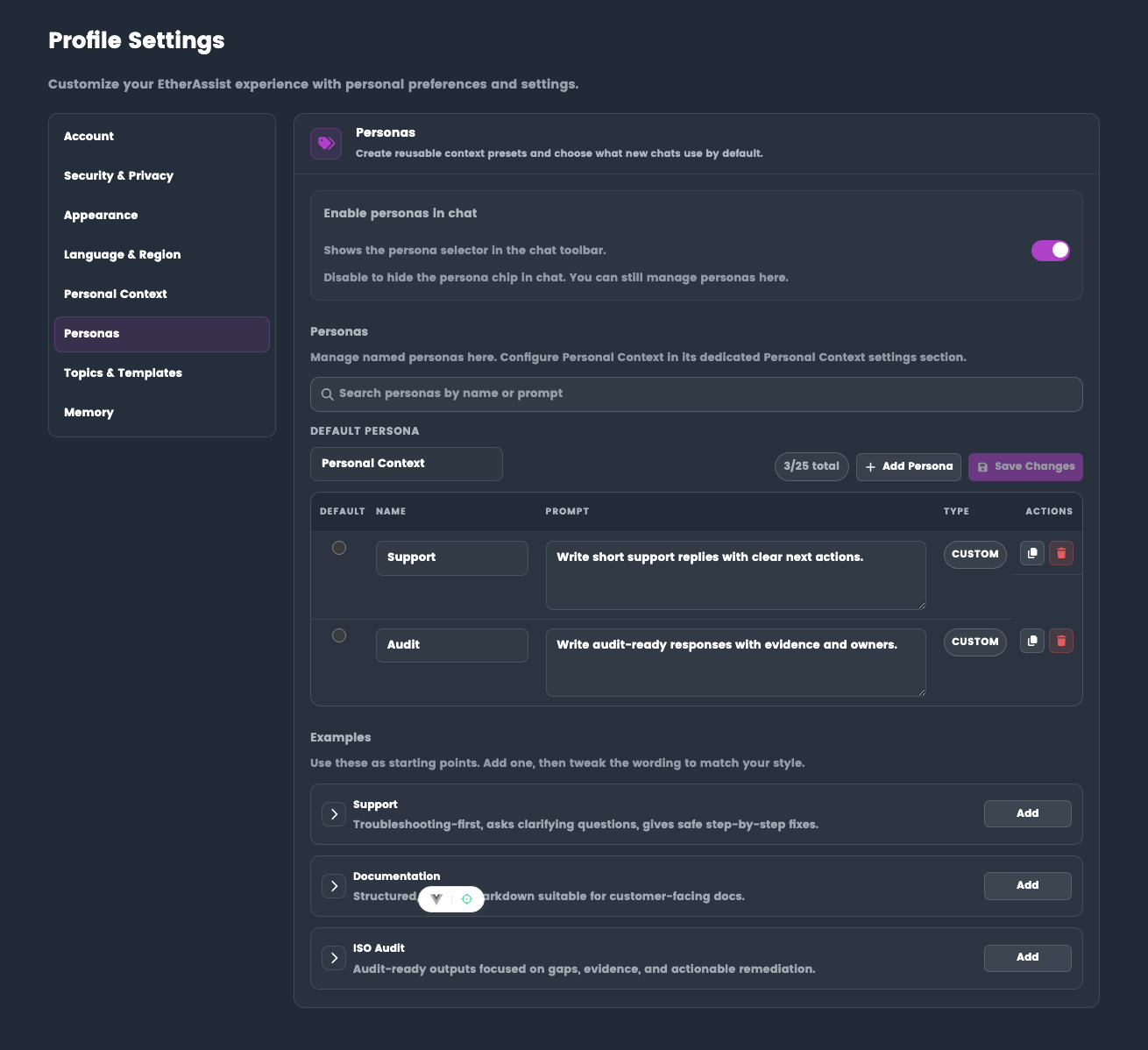
- Open Personas.
- Create or edit named personas for repeated writing or review styles.
- Keep names short and purpose-specific, such as Email, Audit, or Document Review.
- Save the persona and select it from chat when needed.
Configure topics, templates, and memory
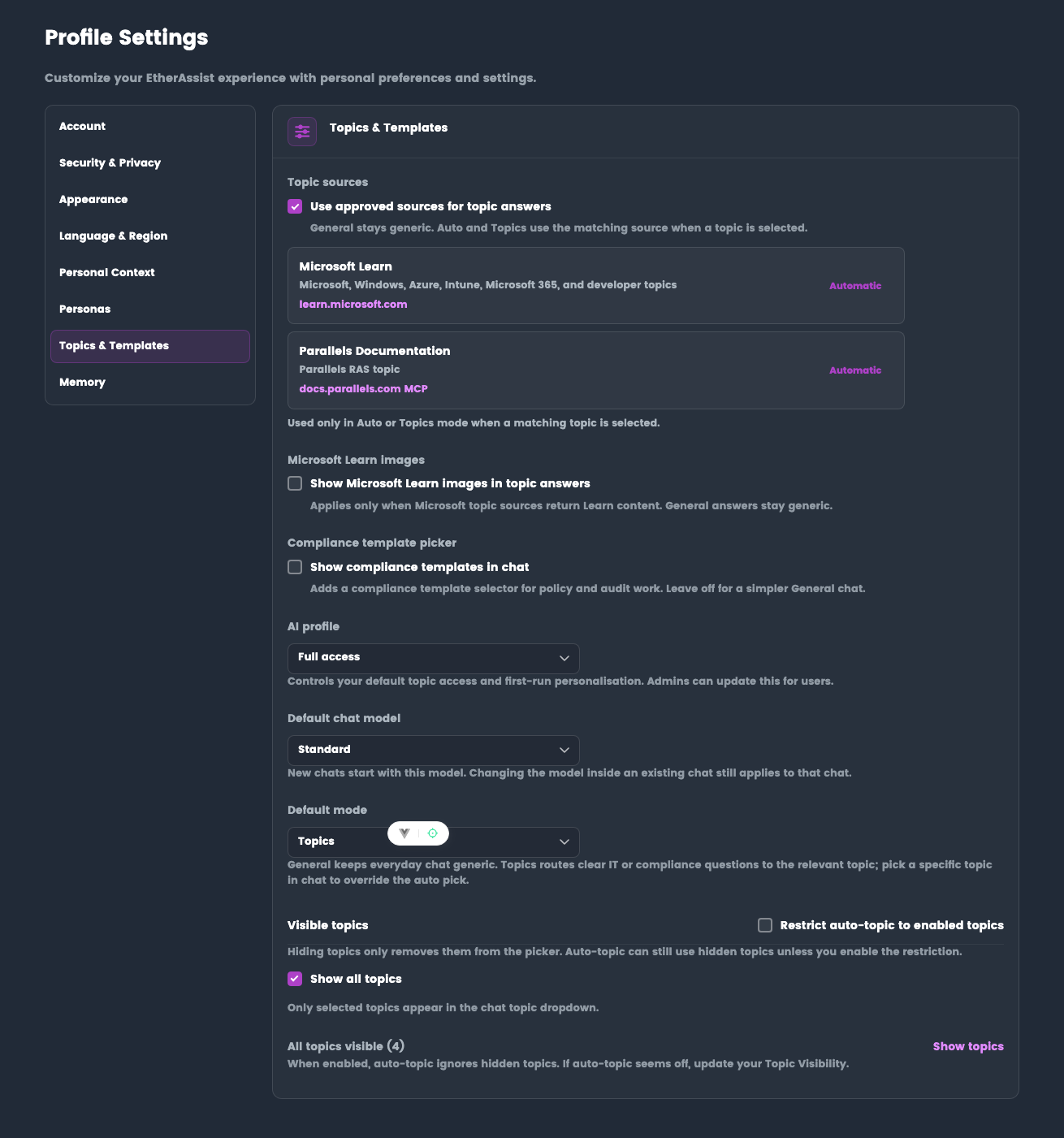
- Open Topics & Templates.
- Review visible topics and template-related preferences.
- Enable only the sources and topics that are relevant to your work.
- Save changes.
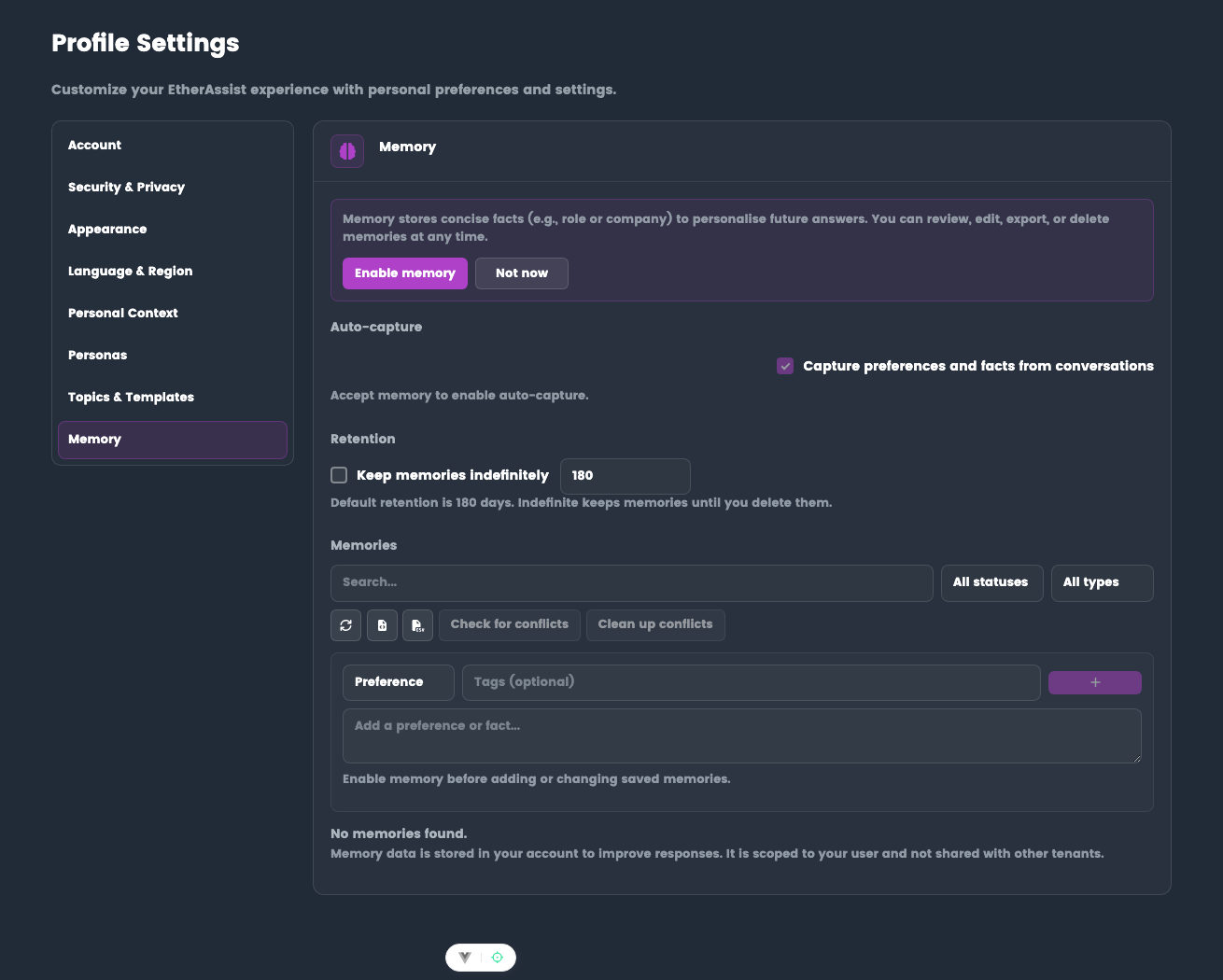
- Open Memory.
- Review whether memory is enabled for your account.
- Add, review, or remove memories according to your organisation policy.
Troubleshooting
| Issue | What to check |
|---|---|
| Wrong email is shown | Sign out and sign in with the intended account. |
| Setting is unavailable | Confirm tenant policy and subscription level. |
| Personal context is ignored | Start a new chat and keep the context concise. |
| Memory controls are disabled | Confirm memory is enabled and allowed for your tenant. |