
Using the Document Manager
Use Document Manager documents in templates and chat when EtherAssist needs approved source material. This guide covers the two common attachment paths.
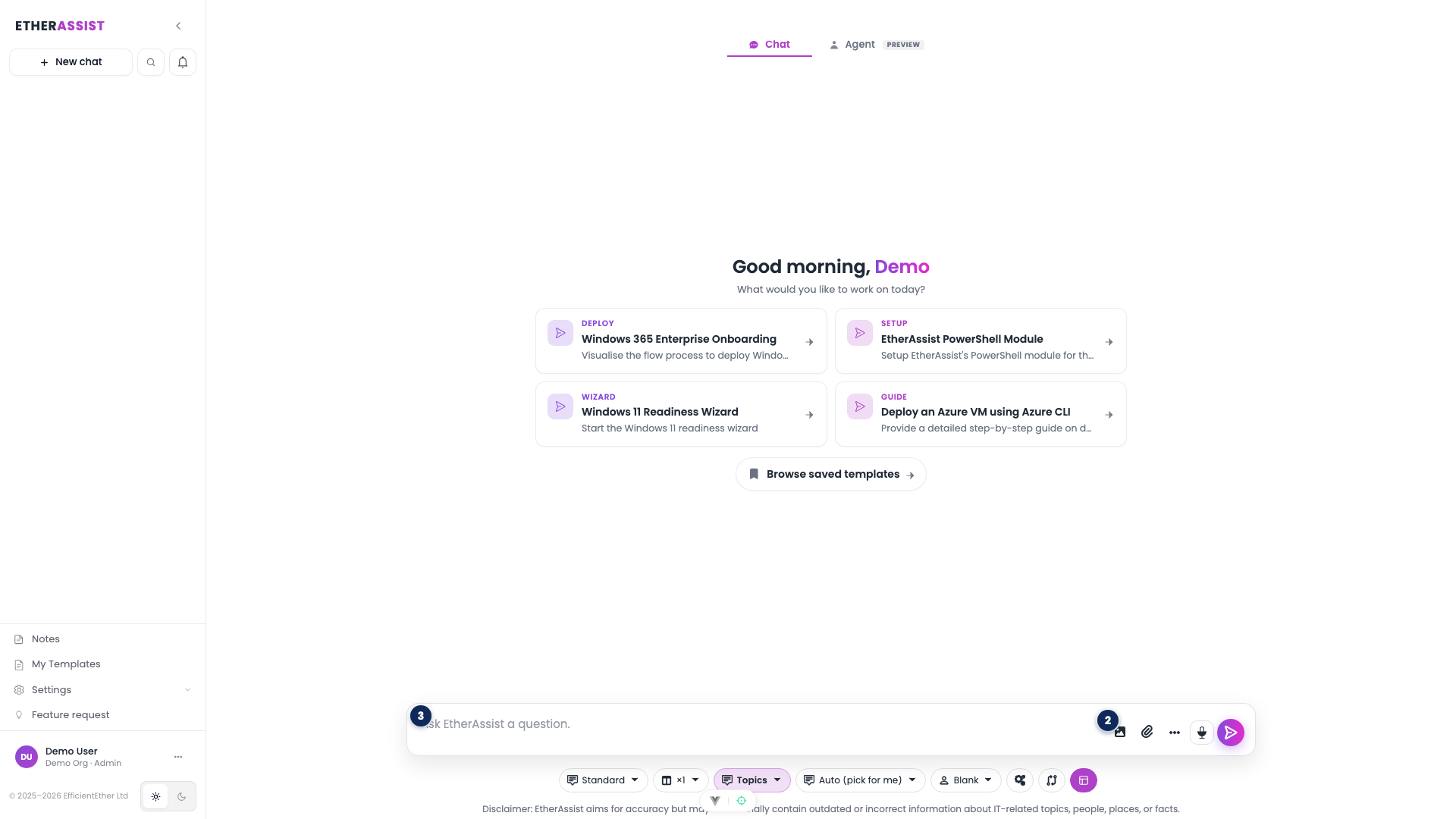
The numbered pins show the attachment controls on the chat composer.
| Pin | Area | Use it to |
|---|---|---|
| 1 | Image attachment | Attach an image to the conversation when the answer needs visual context. |
| 2 | Document attachment | Open the Document Manager picker and select an approved file. |
| 3 | Composer textarea | Describe how EtherAssist should use the attachment in the answer. |
Before you begin
- Upload the document to Document Manager first.
- Confirm the document is current and approved for use.
- Know whether the document should support a template or a one-off question.
- Remove sensitive data that is not needed for the task.
Attach a document to a template
- Open Templates.
- Create a new template or edit an existing template.
- Choose the document attachment option.
- Select the approved document.
- Save the template.
- Test the template with a safe example.
Expected result: future uses of the template include the selected source document.
Attach a document to a question
- Open chat.
- Select the document attachment action (pin 2).
- Choose the document from Document Manager.
- Ask a question that states how the document should be used.
- Confirm the attachment is visible before sending.
Choose the right attachment path
| Need | Use | Result |
|---|---|---|
| Reuse the same approved source across repeated prompts | Attach the document to a template | Every generated response from that template uses the same source document. |
| Ask a one-off question about a file | Attach the document directly to chat | The current conversation can use the selected source without changing a reusable template. |
| Keep answers easy to verify | Name the document and expected section in the prompt | EtherAssist can focus on the correct source and return clearer references. |
Tips
- Name the document in the prompt if multiple files are attached.
- Ask for section references when the answer must be easy to verify.
- Keep reusable documents up to date to avoid stale answers.
- Use templates when the same document is used repeatedly.
Troubleshooting
| Issue | What to check |
|---|---|
| Document is not selectable | Confirm upload status, permissions, and organisation context. |
| Answer ignores the document | Ask EtherAssist to use the named document explicitly. |
| Template output is stale | Update or replace the attached document. |
| Attachment is too broad | Split the source into smaller focused files. |