
Voice input and read aloud
Voice input helps you dictate prompts, and read aloud helps you listen to responses. Availability depends on browser support, device permissions, and tenant policy.
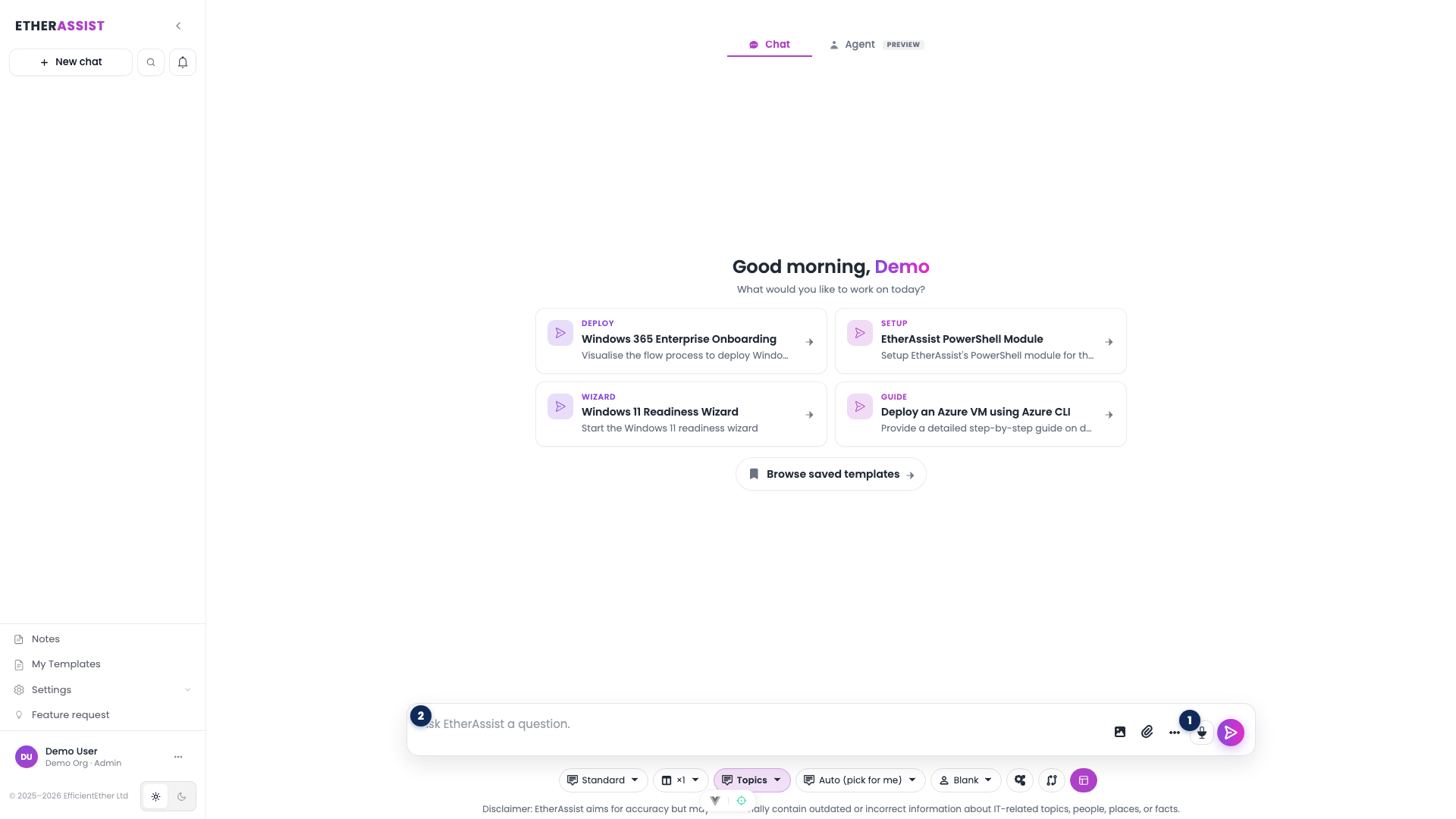
The numbered pins show the voice input control on the chat composer. Read aloud appears on assistant responses after a message is sent.
| Pin | Area | Use it to |
|---|---|---|
| 1 | Microphone | Start voice dictation; allow microphone permission if the browser prompts. |
| 2 | Composer textarea | Review and edit the transcribed text before sending. |
Before you begin
- Use a browser and device that support microphone and audio playback features.
- Allow microphone access when using voice input.
- Use a quiet environment for better transcription.
- Review dictated text before sending it.
Use voice input
- Open chat.
- Select the microphone or voice input control.
- Allow browser microphone permission if prompted.
- Speak the prompt clearly.
- Review and edit the transcribed text.
- Send the prompt when it is correct.
Expected result: the dictated prompt appears in the composer before you send it.
Use read aloud
- Open a response you want to hear.
- Select the read aloud control if it is available.
- Listen to the response.
- Pause or stop playback when finished.
- Use text review for any content that needs approval or precision.
Support matrix
| Feature | Depends on |
|---|---|
| Voice input | Browser speech support, microphone permission, device microphone, tenant policy. |
| Read aloud | Browser audio support, device audio output, tenant policy. |
Troubleshooting
| Issue | What to check |
|---|---|
| Microphone button is unavailable | Confirm browser support and tenant policy. |
| Browser blocks microphone | Allow microphone access for the EtherAssist site. |
| Transcription is inaccurate | Move to a quieter place and edit the text before sending. |
| Read aloud has no sound | Check browser tab audio, device volume, and output device. |