
Product orientation
EtherAssist is organised around chat, reusable knowledge, automation, administration, and integrations. Use this article to find the right product area before following a task guide.
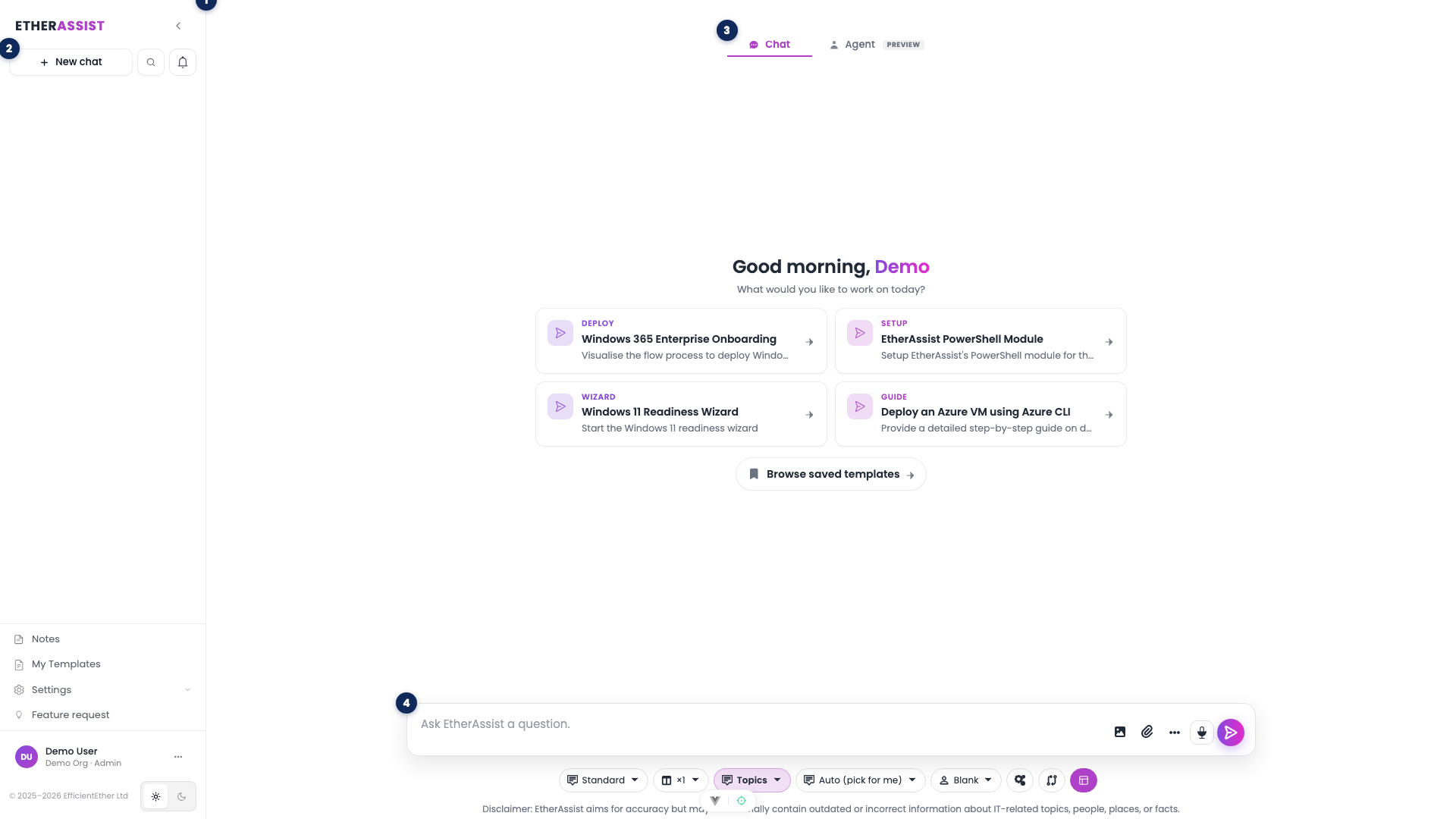
The numbered pins show the main workspace areas referenced in this article.
| Pin | Area | Use it to |
|---|---|---|
| 1 | Primary sidebar | Move between chat, conversations, templates, documents, automation, settings, and administration. |
| 2 | New chat | Start a new conversation in the current workspace. |
| 3 | Chat / Agent mode tabs | Switch between the chat workspace and Agent Mode for longer multi-step tasks. |
| 4 | Chat composer | Enter your prompt, choose model, topic, attachments, and send. |
Before you begin
- Sign in with the account your organisation expects you to use.
- Confirm whether you are a standard user or tenant administrator.
- Keep customer or tenant data out of screenshots unless approved for documentation.
Navigate the main workspace
- Use the sidebar (pin 1) to move between chat, conversations, templates, documents, automation, settings, and administration.
- Start a new conversation from New chat (pin 2).
- Switch between the chat workspace and Agent Mode using the mode tabs (pin 3).
- Check usage and account information from the profile area at the bottom of the sidebar.
Expected result: you can identify the product area that owns the task you need to complete.
Use the chat workspace
- Choose a model that matches the task depth from the model chip below the composer.
- Select General, Auto, or Topics depending on the grounding you need.
- Attach files only when they are relevant.
- Use tools such as diagrams, diff, or voice only when they support the task.
- Send the prompt and review the answer before exporting or sharing.
Select topics and review code
- Use Auto when EtherAssist should choose from visible specialist topics.
- Use Topics when the task should be grounded in a specific technology or compliance area.
- Switch to General when you want a non-grounded response.
- Use code view when reviewing scripts, JSON, YAML, or configuration blocks.
Get help or provide feedback
- Open help or support when you need assistance.
- Include the task, page, and any safe error text.
- Avoid sending secrets or sensitive customer data.
- Use Feature request in the sidebar footer to suggest improvements.
Troubleshooting
| Issue | What to try |
|---|---|
| The feature is not visible | Confirm your role, subscription, and organisation policy allow access. |
| A setting or action does not save | Refresh the page, sign out and back in, then retry the smallest change first. |
| The result differs from the screenshot | Check whether your tenant has a different role, region, policy, or subscription configuration. |