
Sign up and first access
Use this article to get started with EtherAssist, choose the correct sign-in option, complete any onboarding steps, and confirm that your account has the right access.
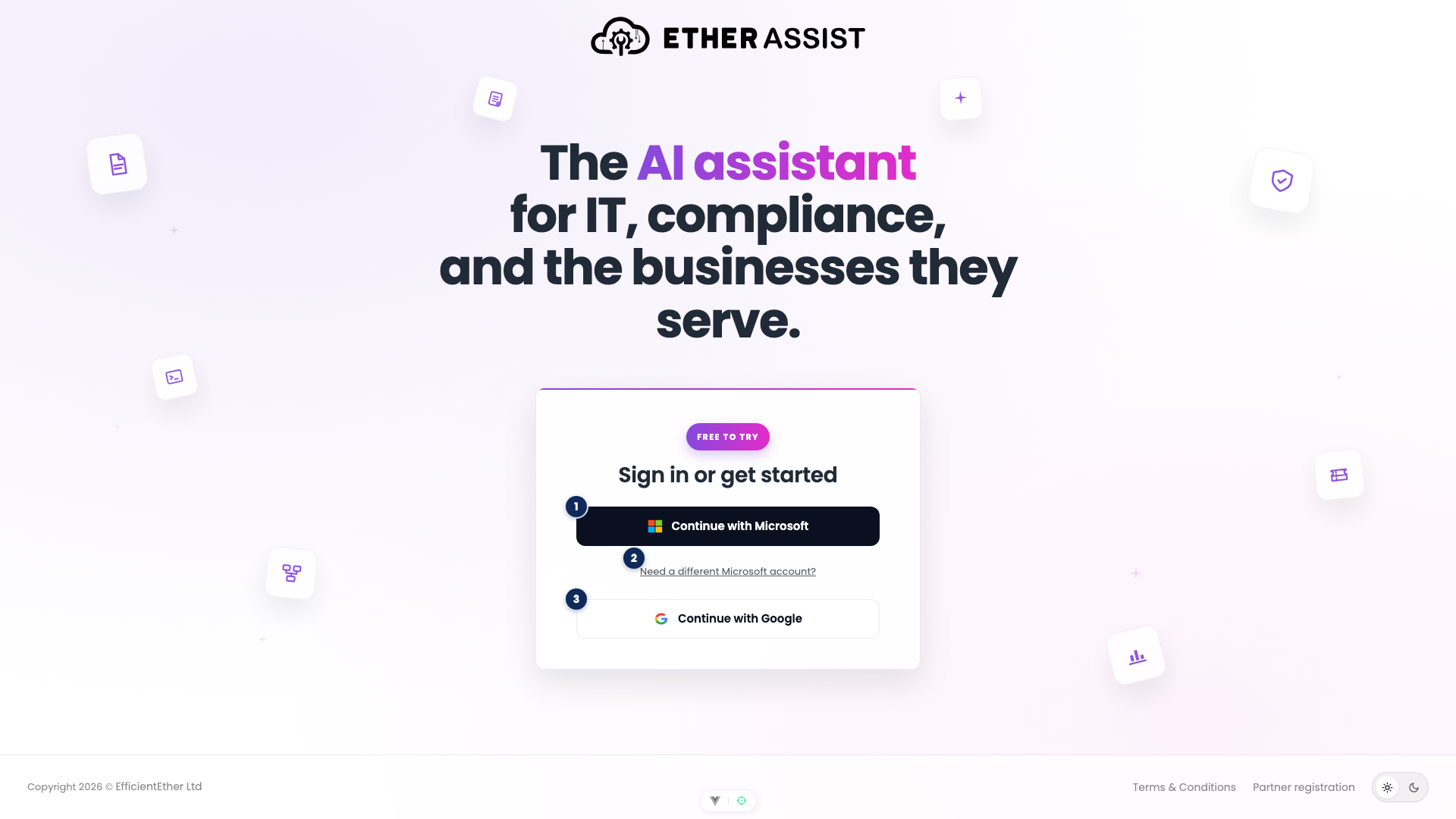
The numbered pins show the sign-in controls referenced in this article.
| Pin | Area | Use it to |
|---|---|---|
| 1 | Continue with Microsoft | Start sign-in with a Microsoft work, school, or personal account. |
| 2 | Need a different Microsoft account? | Open the Microsoft account picker before sign-in. |
| 3 | Continue with Google | Start sign-in with a Google account that your organisation allows. |
Before you begin
You need one of the following access paths before the first sign-in can complete.
| Access path | Use this when |
|---|---|
| Direct sign-up | You are starting a new EtherAssist account for yourself or your organisation. |
| Organisation invitation | An administrator has invited you to an existing organisation. |
| Azure Marketplace | Your subscription is purchased through Microsoft Azure Marketplace. |
You also need a Microsoft, work, school, personal, or Google account that your organisation allows for sign-in. If your tenant restricts app consent, an administrator may need to approve access before users can complete authentication.
Sign in or get started
- Go to the EtherAssist sign-in page.
- Select Continue with Microsoft if you use a Microsoft work, school, or personal account.
- Select Continue with Google if your organisation uses Google sign-in.
- Complete any identity provider prompts, such as multi-factor authentication or administrator consent.
- After sign-in, confirm that the account shown in EtherAssist is the account you intended to use.
Use a different Microsoft account
If the browser keeps choosing the wrong Microsoft identity, select Need a different Microsoft account?, then select Use another Microsoft account.
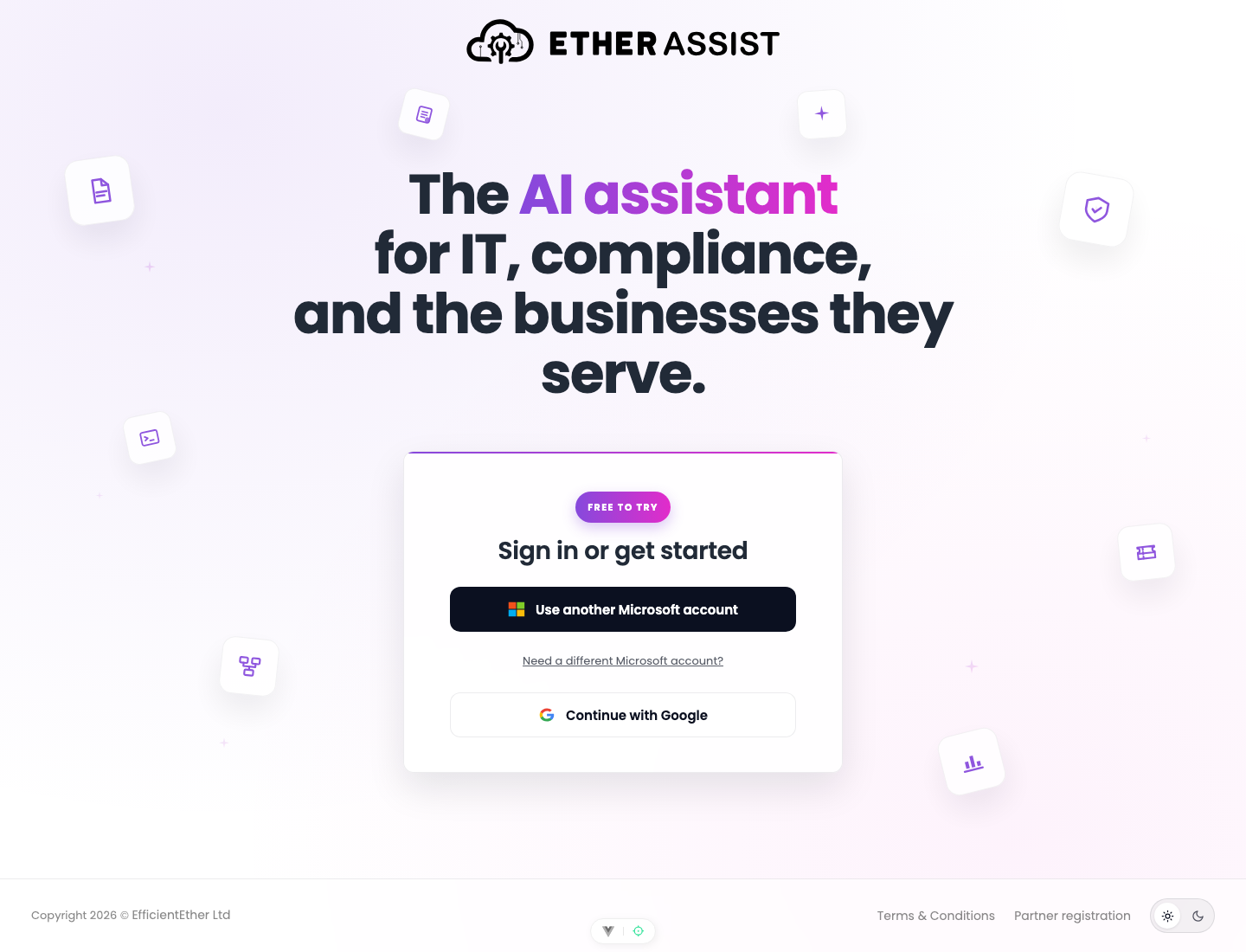
This sends you through the Microsoft account picker so you can choose another account before returning to EtherAssist.
Choose a subscription
If you are creating a new organisation or you are the billing owner, EtherAssist may ask you to choose a subscription before the workspace opens.
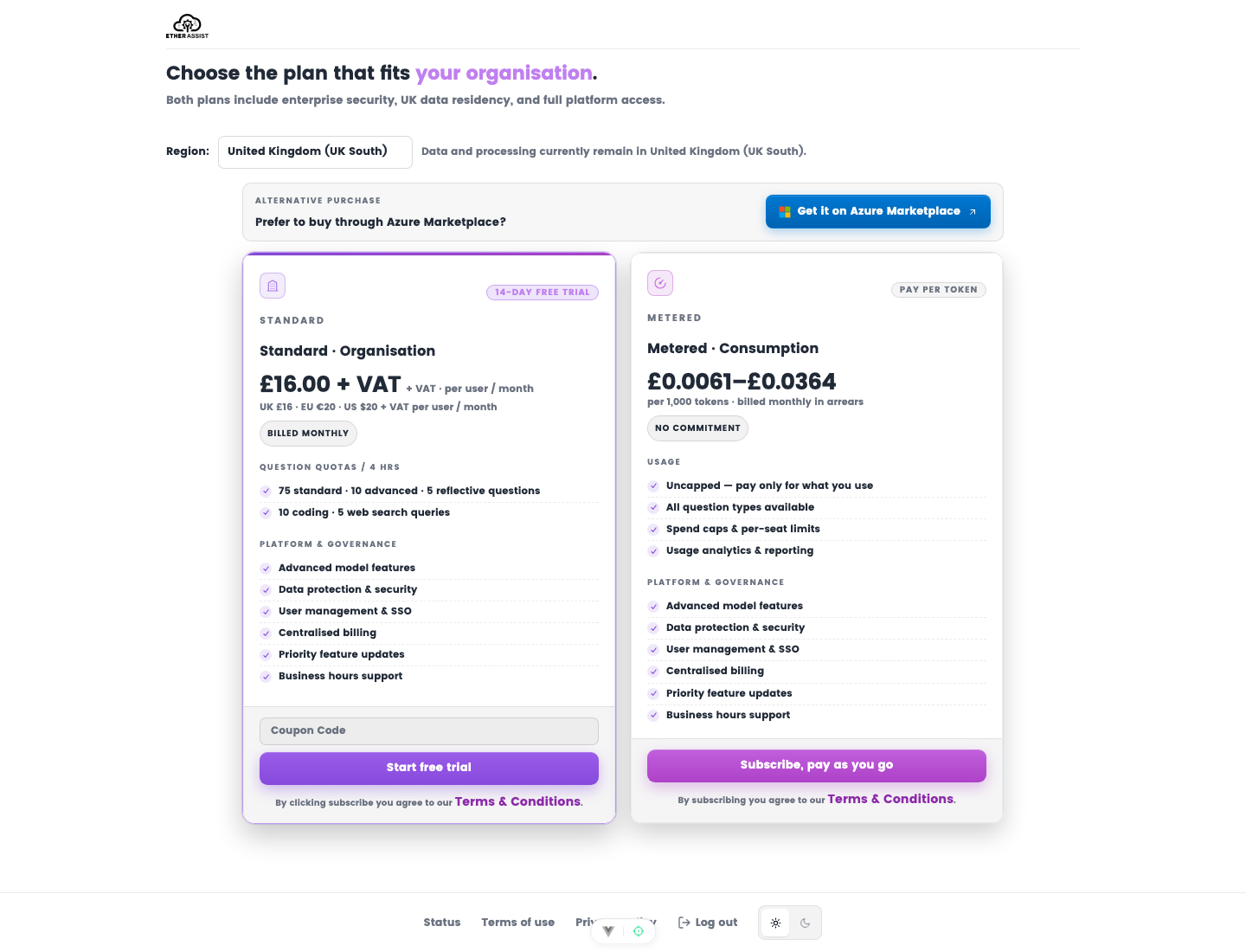
- Confirm the Region shown at the top of the page.
- Choose Standard for per-user organisation access with the included question quotas shown on the plan card.
- Choose Metered when you want consumption billing based on token usage.
- If you prefer Azure billing, use Get it on Azure Marketplace instead of starting a Stripe checkout.
- Add a coupon code only if one was provided for this onboarding flow.
- Select the plan action, then complete the checkout or marketplace registration steps.
Expected result: after checkout or marketplace registration finishes, EtherAssist returns you to the application and updates the organisation subscription state.
Complete first access
After authentication, EtherAssist checks whether your account is linked to an active subscription or organisation invitation.
- Review the organisation or subscription details shown on screen.
- Complete any required subscription or invitation steps.
- Apply any coupon or commercial option only when it is shown during onboarding.
- Continue into the workspace when onboarding confirms access.
Expected result: you reach the EtherAssist workspace with the chat composer available. Your organisation, role, subscription state, model options, and topic visibility should match the account or invitation you used.
Verify your account
After the first successful sign-in, check the following areas before you start production work.
| Check | Expected result |
|---|---|
| Organisation | The correct organisation is shown in the workspace or account area. |
| Email address | Your expected email address is shown in Profile Settings. |
| Chat | The chat composer is available. |
| Models | Fast and Standard options are visible when included in your plan. |
| Topics | Topic visibility matches your role and administrator settings. |
| Admin access | Administration pages appear only if your role includes administrator permissions. |
Tips
- Use the same identity provider that was used for your invitation or subscription.
- If an administrator added you while you were already signed in, sign out and sign back in so EtherAssist can refresh your account context.
- If you manage multiple Microsoft tenants, use the Microsoft account-switch option before retrying sign-in.
- Keep marketplace onboarding in the browser tab that launched the flow until EtherAssist confirms access.
Troubleshooting
| Issue | What to check |
|---|---|
| You reach the wrong organisation | Confirm that you used the same email address as the invitation or subscription. |
| Access is pending | Ask an administrator to confirm your membership, role, and subscription state. |
| Admin pages are missing | Confirm that your role includes administrator permissions. |
| Marketplace access does not activate | Return to the marketplace flow and confirm that the subscription registration completed. |
| The browser keeps using the wrong Microsoft account | Use Need a different Microsoft account? on the sign-in page, or sign out of the Microsoft account in the browser. |