
Models and AI capabilities
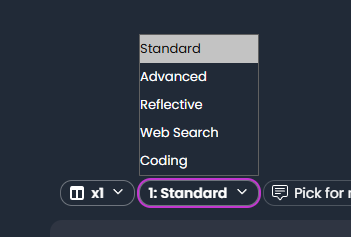
EtherAssist provides several model choices. Availability depends on subscription, tenant policy, and the surface you are using.
Before you begin
- Confirm which models are available in your subscription and tenant policy.
- Decide whether the task needs speed, depth, current web information, or coding support.
- Attach only required files and source context.
- Avoid sensitive data unless your organisation permits it for the task.
Model guide
| Model | Use it for | Notes |
|---|---|---|
| Fast | Short, near real-time answers and routine drafts. | Default speed for Standard-tier work where available. |
| Standard | Everyday technical questions, summaries, and normal document drafting. | Use when you want a steadier Standard-tier route. |
| Advanced | Complex analysis, architecture, multi-step troubleshooting, and detailed guidance. | Use when Standard output needs more depth. |
| Reflective | Compliance, security, risk, and higher-accuracy review work. | Best for high-impact documents and decisions that require careful review. |
| Web Search | Current public information, recent releases, or live web context. | Controlled by tenant policy and not available for every account. |
| Coding | Script generation, code review, conversion, and debugging. | Useful for PowerShell and other technical scripting tasks. |
AI modes
| Mode | Use it when |
|---|---|
| General | You want broad assistance without specialist topic grounding. |
| Auto | You want EtherAssist to choose the best available topic. |
| Topics | You want to explicitly choose one or more specialist topics. |
Topic availability and source access can be restricted by administrators.
Prompt context
EtherAssist can use:
- the current date and time;
- your language and date format preferences;
- selected topics;
- attached files or Document Manager content;
- enabled memory items;
- personal context and personas where configured.
Do not include sensitive data unless it is required for the task and permitted by your organisation.
Compare mode
Compare mode generates multiple outputs for the same request. Use it when quality matters and you want to compare different model responses before selecting one.
See Compare mode.
Choose a model
- Open chat, a template, an agent task, or a workflow step.
- Open the model selector.
- Choose the model route that matches the work.
- Add topic, file, or persona context only when needed.
- Send the request.
- Review the output before sharing or exporting it.
Expected result: EtherAssist uses the selected model route for the request. In chat, the selected model is preserved until you change it.
Where model choices apply
| Surface | Behavior |
|---|---|
| Chat | Choose a model before sending a message. The selected model is preserved until you change it. |
| Templates | Save a preferred model with a reusable template. |
| Agent tasks | Choose the model used for the background task. |
| Workflows | Choose models per step; different steps can use different models. |
Selection guidance
- Start with Fast or Standard for normal work.
- Use Advanced when the answer requires deeper reasoning or more detailed structure.
- Use Reflective for compliance, security, and high-impact decisions.
- Use Web Search only when current public information is needed.
- Use Coding for scripts and code.
Tips
- Keep names, prompts, and configuration values specific to the task you are performing.
- Check role, subscription, region, and tenant policy when a feature is not visible.
Troubleshooting
| Problem | What to check |
|---|---|
| Model is unavailable | Confirm subscription, tenant policy, and surface support. |
| Response is too brief | Try Standard or Advanced with clearer output requirements. |
| Response needs stronger review | Use Reflective and provide the source material that should ground the answer. |
| Current information is missing | Use Web Search when tenant policy allows it. |
| Model changed unexpectedly | Reopen the selector and confirm the chosen model before sending the next request. |