
Topics and templates
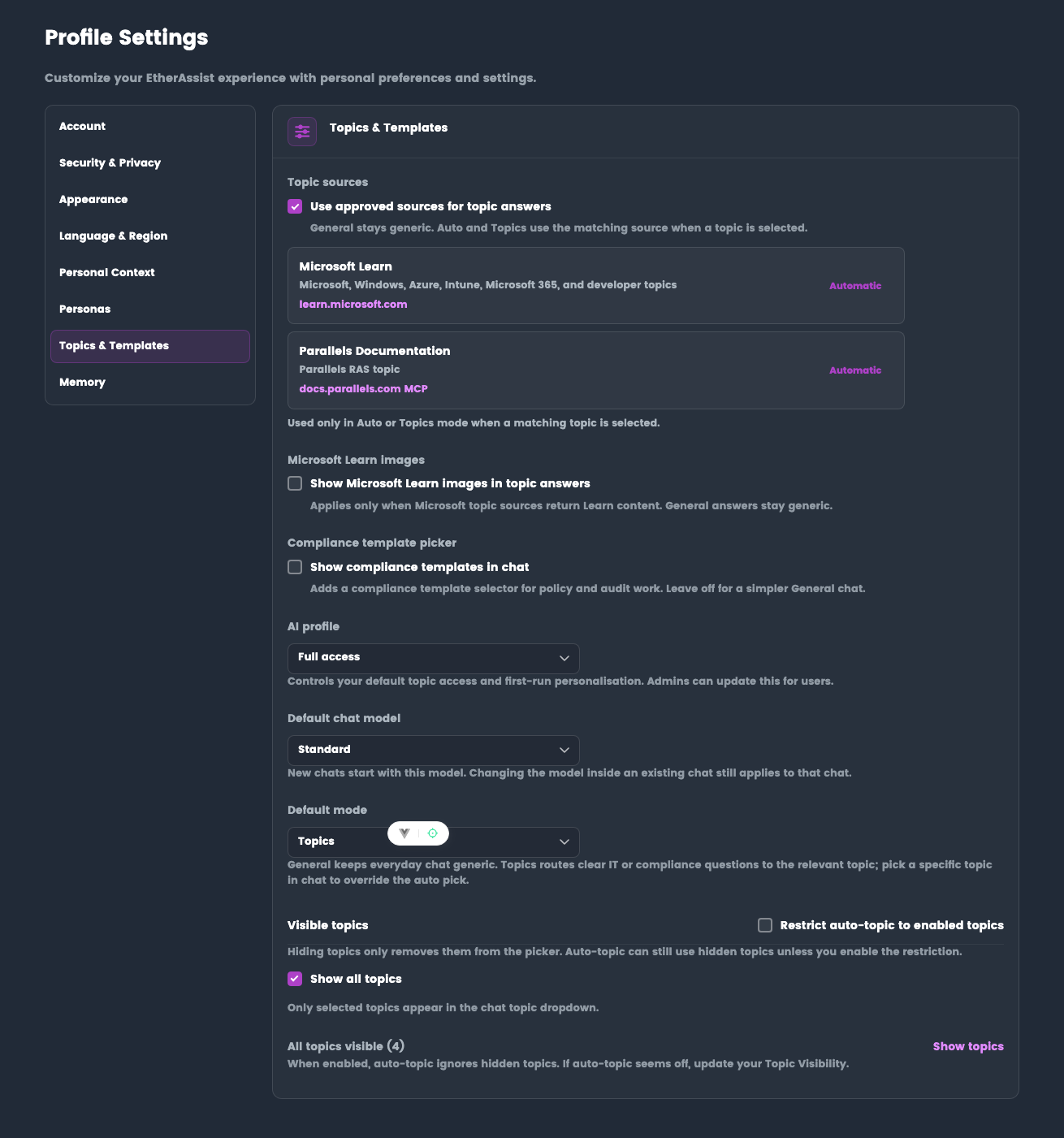
Use Topics & Templates to control how EtherAssist selects specialist topic context and whether compliance-focused template helpers appear in chat.
Location: Settings → Topics & Templates
Before you begin
- Sign in to EtherAssist.
- Confirm whether you want broad General chat or specialist Topics routing by default.
- Ask an administrator if a topic, source, or template option is restricted by tenant policy.
Topic sources
Topic sources are approved specialist sources used for topic answers. General chat stays generic. Topics mode can use the matching source when a topic is selected or routed automatically.
Use Use approved sources for topic answers to enable or disable topic-source grounding for your account when tenant policy allows it.
Your administrator can disable topic sources or restrict them to approved internal and Microsoft sources.
Configure topic routing
- Open Settings → Topics & Templates.
- Choose the AI profile that matches your role.
- Set the default mode to General or Topics.
- Select the topics you want visible, if custom selection is available.
- Decide whether automatic topic routing should use only enabled topics.
- Save the settings.
Expected result: new chats use your selected default mode and show only the topics available to your account.
Microsoft Learn images
Use Show Microsoft Learn images in topic answers when you want Microsoft Learn images to appear with Microsoft topic answers.
This applies only when Microsoft topic sources return Learn content. General answers stay generic.
Compliance template picker
Use Show compliance templates in chat to show a compliance template selector for policy, procedure, audit, and assurance work.
Leave it off when you want a simpler General chat surface.
Configure compliance templates
- Open Settings → Topics & Templates.
- Enable Show compliance templates in chat.
- Return to chat.
- Select a compliance topic or template.
- Ask for a policy, procedure, control mapping, evidence checklist, or audit support draft.
Expected result: compliance template options are available from chat for supported compliance work.
AI profile
Your AI profile controls default topic access and first-run personalisation.
| Profile | Typical use |
|---|---|
| General | Broad assistance without specialist topic routing. |
| IT / all topics | IT users who need Microsoft, cloud, endpoint, scripting, and operations topics. |
| Compliance / audit | Users focused on frameworks, policies, procedures, and evidence. |
| Full access | Users who need all available topic areas. |
| Custom | Users with administrator-defined topic access. |
Admins can update AI profile settings for users.
Default mode
| Mode | Behaviour |
|---|---|
| General | Keeps everyday chat broad and generic. |
| Topics | Routes clear IT or compliance questions to relevant specialist topics. |
If your AI profile is set to General, the default mode is locked to General.
Visible topics
Visible topics control what appears in the topic picker.
- Show all topics displays every topic available to your account.
- Custom selection shows only the topics you select.
- Restrict automatic topic routing to enabled topics prevents EtherAssist from routing to topics you have hidden.
Topic visibility may also be controlled by an administrator. If a topic is unavailable, contact your tenant administrator.
Tips
- Use General for broad non-specialist work.
- Use Topics when the answer should use specialist IT or compliance grounding.
- Keep visible topics focused so the topic picker stays easy to scan.
Troubleshooting
| Issue | What to check |
|---|---|
| Topic is missing | Confirm your AI profile, visible topic settings, and administrator policy. |
| Topic sources are unavailable | Check whether approved sources are disabled by tenant policy. |
| Compliance templates do not appear in chat | Confirm the compliance template picker is enabled and start a new chat. |