
Account settings
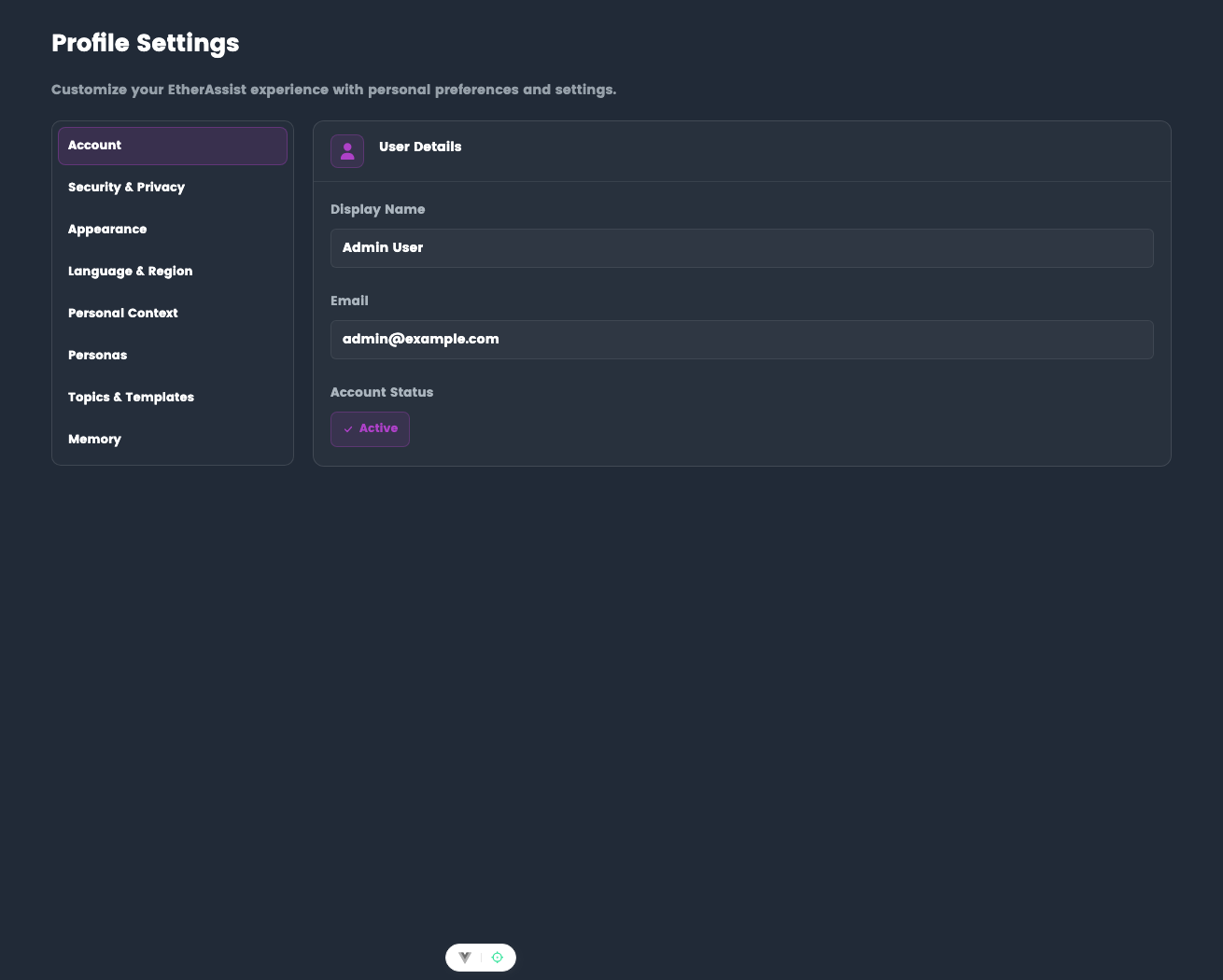
Use Account settings to confirm which EtherAssist account is active.
Location: Settings → Account
Before you begin
- Sign in to EtherAssist.
- Use the account you expect to use for your organisation.
- Sign out and back in after an administrator changes your access.
Details shown
| Field | Description |
|---|---|
| Display name | The name associated with your signed-in account. |
| The email address currently signed in. Use this to confirm you are using the expected account. | |
| Account status | The current subscription or access state shown for your account. |
When to check this page
Check Account settings when:
- you have access to more than one organisation;
- an administrator recently changed your access;
- you were invited with a different email alias;
- you need to confirm which email address is active before contacting support.
If an administrator has just changed your tenant access, sign out and sign back in before retesting.
Verify account details
- Open Settings → Account.
- Check the display name and email address.
- Confirm the status shown for your account.
- Contact your administrator if the organisation, role, or status is not what you expect.
Expected result: you can confirm which identity is active before requesting help or changing settings.
Tips
- Keep names, prompts, and configuration values specific to the task you are performing.
- Check role, subscription, region, and tenant policy when a feature is not visible.
Troubleshooting
| Issue | What to check |
|---|---|
| Wrong email is shown | Sign out and use the expected Microsoft or Google account. |
| Organisation access is missing | Confirm the invite email, role, and subscription state with your administrator. |
| Recent access change is not visible | Sign out and sign back in to refresh the account context. |