
Appearance Settings
Customize how EtherAssist looks and feels.
Before you begin
- Sign in to EtherAssist.
- Open Settings from the sidebar.
- Decide whether you want visual, text-size, or chat-scrolling changes.
Access appearance settings
- Open Settings.
- Select Appearance.
- Change one display preference at a time.
- Confirm the page updates immediately.
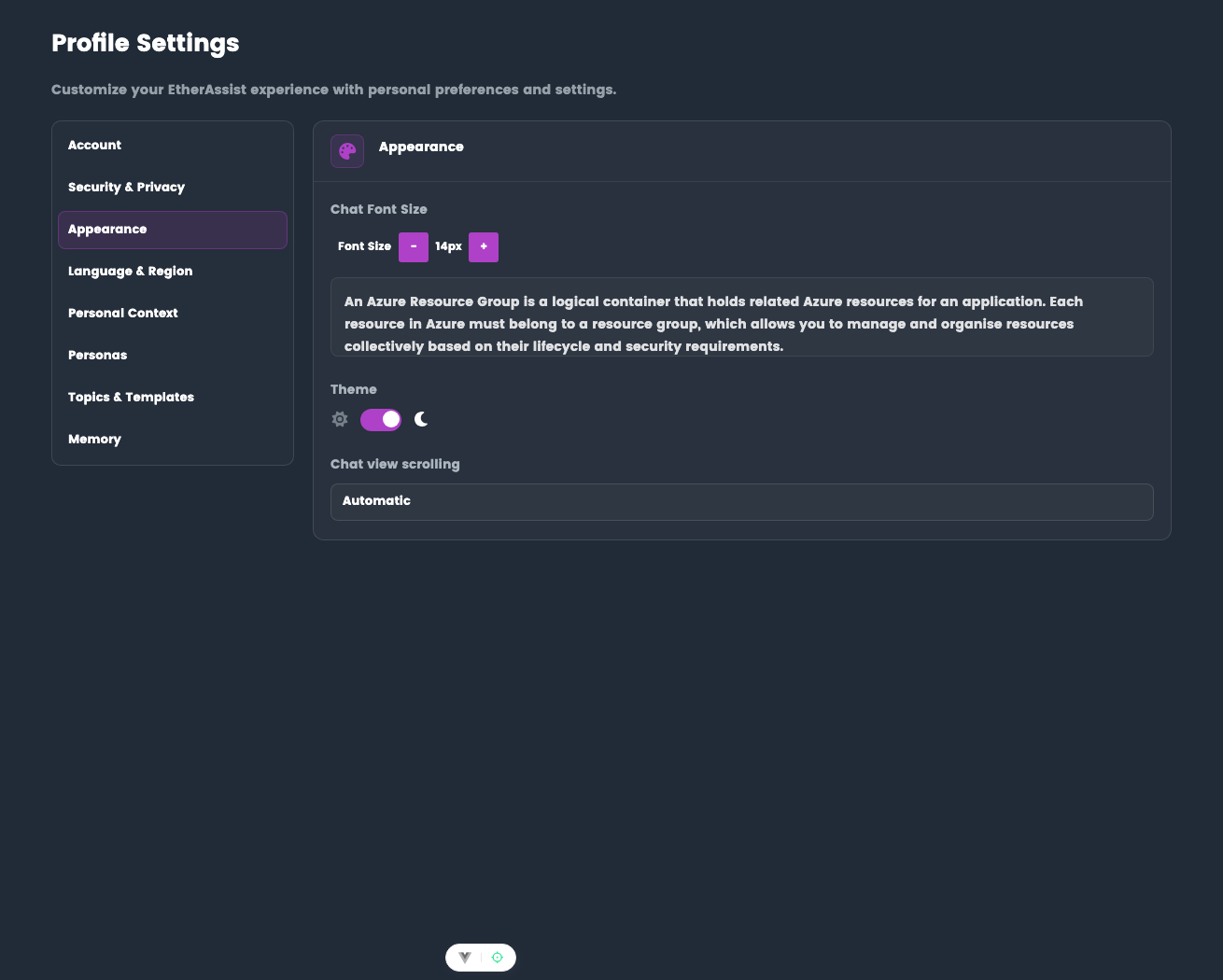
Chat font size
Adjust text size in chat conversations:
- Select - to decrease or + to increase the chat font size.
- Review the preview text.
- Return to chat and confirm the conversation text is comfortable to read.
Available sizes: 12px - 20px
Theme
Switch between light and dark mode:
- Toggle the theme switch.
- Confirm the theme applies instantly.
- Return after a new session to confirm the setting persists.
Options:
- Light mode - Bright background, dark text
- Dark mode - Dark background, light text
Chat scrolling
Configure chat view scrolling behavior:
Options:
- Automatic - Auto-scrolls to latest message
- Manual - Scroll manually to view older messages
Tips
- Use light or dark mode based on the environment where you usually work.
- Increase chat font size for long review sessions or presentation screens.
- Choose manual scrolling when you frequently read older conversation context.
Troubleshooting
| Issue | What to check |
|---|---|
| Theme does not persist | Refresh, sign out and back in, then reapply the setting. |
| Text still feels too small | Increase chat font size and check browser zoom. |
| Chat jumps while reading | Switch chat scrolling to manual. |