
Memory & Personalization
Memory stores concise facts and preferences that can help EtherAssist personalize future responses. It is user-controlled: you decide whether memory is enabled, what is saved, and when memories are edited, exported, or deleted.
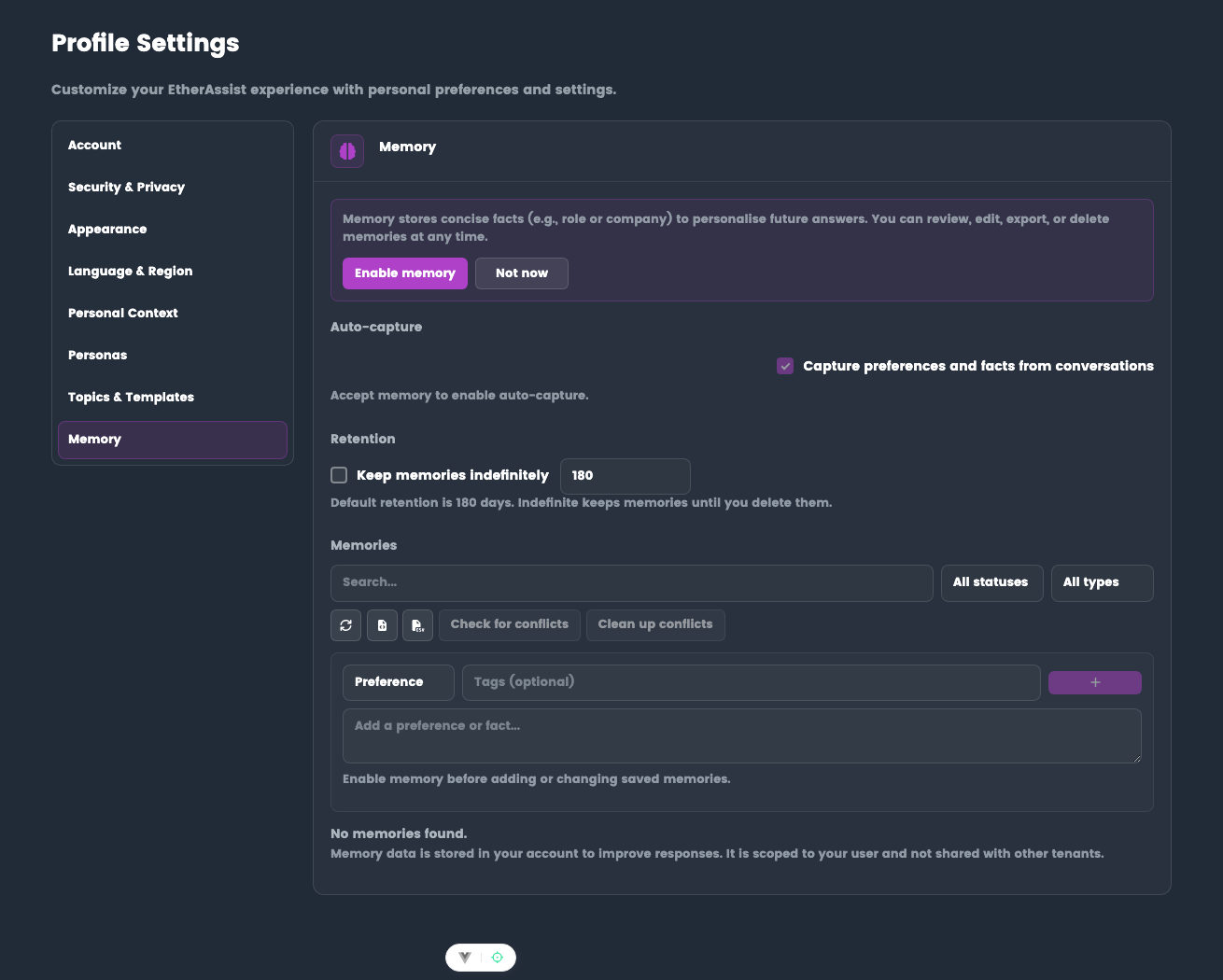
Location: Settings → Profile → Memory
Before you begin
- Sign in to EtherAssist.
- Decide whether you want EtherAssist to remember stable preferences across future work.
- Do not save passwords, API keys, private tokens, or short-lived incident details as memories.
What memory does
- Stores stable preferences such as writing style, output format, or technical depth.
- Stores role or environment facts that you explicitly allow.
- Helps future chats, compare outputs, and Agent Mode runs use relevant context.
- Gives you controls to review, edit, export, and delete saved memories.
Memory types
| Type | Use for | Example |
|---|---|---|
| Preference | How you like responses to be written | Prefer concise PowerShell examples with comments |
| Fact | Stable information about your role or environment | IT Manager for a 500-user Microsoft 365 tenant |
| Project | Current initiatives | Planning a Windows 11 migration |
| Constraint | Rules that should shape future answers | Must align with ISO 27001 and UK data residency |
Enable memory
- Go to Settings → Profile → Memory.
- Select Enable memory.
- Decide whether to enable Capture preferences and facts from conversations.
- Review retention settings.
- Add or approve memories as needed.
Auto-capture
When auto-capture is enabled, EtherAssist can suggest concise memories from conversations. Review suggested memories before relying on them for future responses.
Do not save passwords, API keys, private tokens, or short-lived incident details as memories.
Add a manual memory
Use manual memories for important preferences that should be applied consistently.
- Choose the memory type.
- Add optional tags.
- Enter the memory text.
- Save the memory.
Manage memories
- Search or filter memories by status and type.
- Edit memories when your role, customer context, or technology stack changes.
- Export memories before major cleanup.
- Delete memories that are no longer useful.
- Use conflict checks when multiple memories say different things.
Retention
Use retention controls to decide whether memories are kept indefinitely or expire after a set number of days. Your organization may define default retention expectations.
Where memory is used
| Surface | Uses memory |
|---|---|
| Chat | Yes, when memory is enabled and relevant |
| Compare Mode | Yes |
| Agent Mode | Yes |
| API | Yes, where the request is tied to your account |
| Public shared conversations | No |
Memory vs Personal Context
| Feature | Best for |
|---|---|
| Personal Context | A short baseline description of your role and environment |
| Personas | Named response presets that can be selected per conversation |
| Memory | Evolving facts and preferences that should be recalled later |
Good memory examples
- Prefer British English and concise executive summaries.
- I manage Microsoft 365, Intune, and Entra for a UK professional services firm.
- For audit outputs, include evidence owner, frequency, and review status columns.
Avoid saving
- Passwords, access tokens, keys, or secrets.
- Full customer records or sensitive personal data.
- Temporary details that are only useful for one incident.
- Conflicting instructions that should be handled in the current chat instead.
Related articles
Tips
- Review suggested memories before relying on them.
- Keep one stable fact or preference per memory.
- Use Personal Context for your baseline role and Memory for facts that evolve over time.
Troubleshooting
| Issue | What to check |
|---|---|
| Memory is unavailable | Confirm memory is enabled for your account and not disabled by tenant policy. |
| A suggested memory is wrong | Delete it or edit it before activation. |
| Responses use old context | Update, disable, or delete stale memories, then start a new chat. |