
Create diagrams
EtherAssist can generate diagrams for process flows, architecture views, support handoffs, deployment plans, and compliance evidence flows.
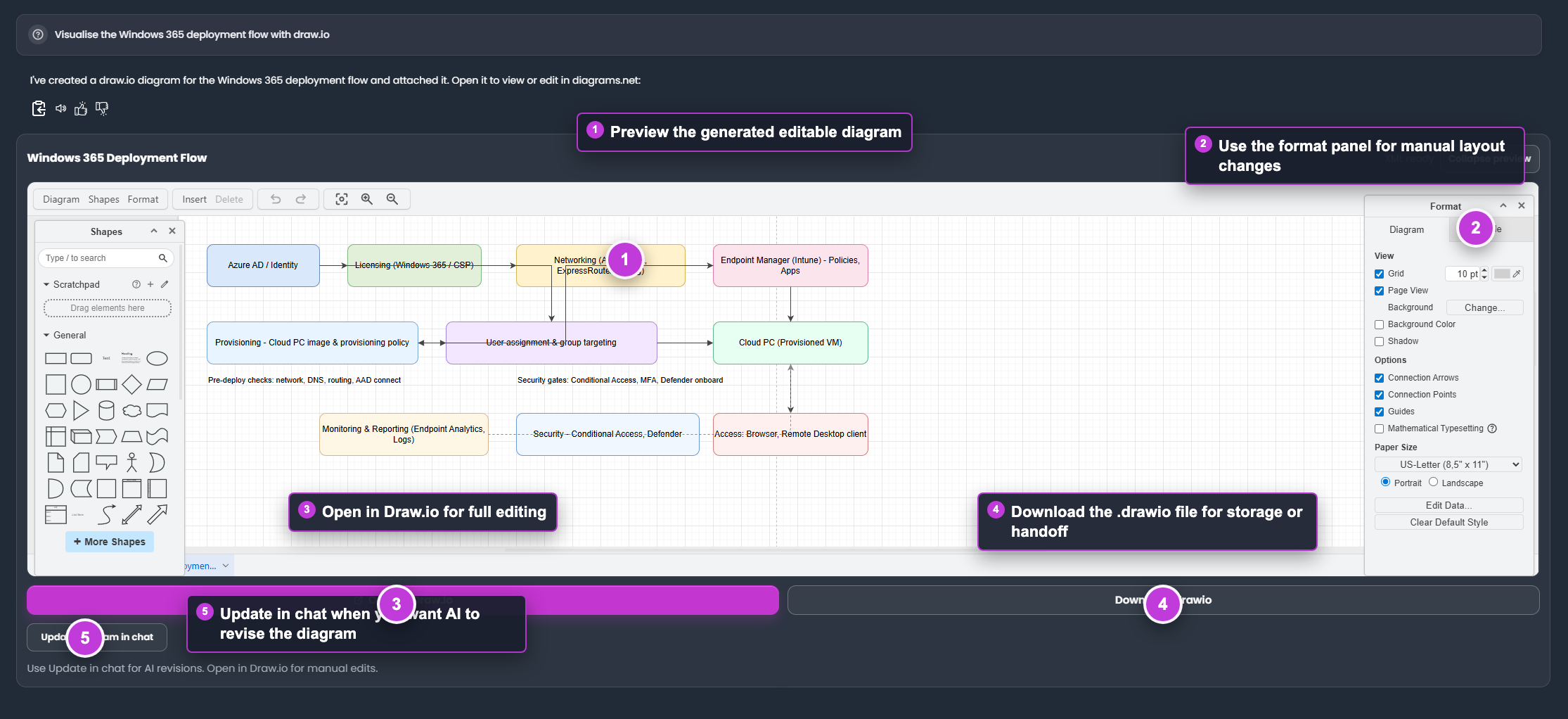
The callouts show where to preview, edit, download, and ask EtherAssist to revise the diagram.
Before you begin
- Decide who the diagram is for: service desk, customer, architect, auditor, or project team.
- List the main systems, actors, and decisions.
- Keep the first version simple. Add detail only after the structure is right.
Choose a diagram type
| Need | Recommended diagram |
|---|---|
| Incident or support process | Activity diagram |
| System interaction | Sequence diagram |
| Architecture overview | Component or deployment diagram |
| Decision path | Flowchart |
| Compliance evidence movement | Activity or sequence diagram |
Create a diagram from chat
- Open Chat.
- Choose a model that matches the complexity of the diagram.
- Select a topic if the diagram is product-specific.
- Describe the scenario, audience, systems, and expected flow.
- Ask for a diagram and a short explanation.
- Review the rendered diagram and ask for revisions if needed.
Example:
Create a vertical activity diagram for an Intune non-compliance remediation process. Include service desk triage, user confirmation, device sync, policy evaluation, remediation, and closure. Keep labels short and make the flow easy for first-line support to follow.
Expected result: EtherAssist returns a readable diagram plus supporting text.
Refine a diagram
- Identify the part that is unclear.
- Ask for one change at a time, such as orientation, labels, missing step, or simplified branching.
- Confirm the revised diagram before exporting or sharing it.
Good follow-up prompts:
- Make the diagram vertical and reduce crossing lines.
- Rename the remediation step to "Apply fix and sync device".
- Add a decision for "Is the device still non-compliant?"
- Remove implementation detail and make this customer-facing.
Export or edit the diagram
Use the available export or diagram integration options when you need an editable copy or a file for documentation.
Tip: For operational runbooks, keep the diagram and procedure together. The diagram shows the flow; the numbered steps explain the action.
Review checklist
- The flow starts and ends clearly.
- Labels are short and meaningful.
- The diagram does not expose tenant names, user names, secrets, or internal URLs.
- The diagram matches the written procedure.
- The audience can understand it without needing the original prompt.
Next steps
Tips
- Keep prompts, names, and configuration values specific to the task you are performing.
Troubleshooting
| Issue | What to try |
|---|---|
| The feature is not visible | Confirm your role, subscription, and organisation policy allow access to Create diagrams. |
| A setting or action does not save | Refresh the page, sign out and back in, then retry the smallest change first. |
| The result differs from the screenshot | Check whether your tenant has a different role, region, policy, or subscription configuration. |