
Manage users
Administrators use the user management area to invite users, confirm their status, and check the role they have been assigned. Use this article for the first user-management pass after signup.
Before you begin
- Sign in with an administrator account.
- Confirm the organisation you are managing.
- Know which role the user should receive.
- Confirm whether the user should be included in a plan quota.
Review users
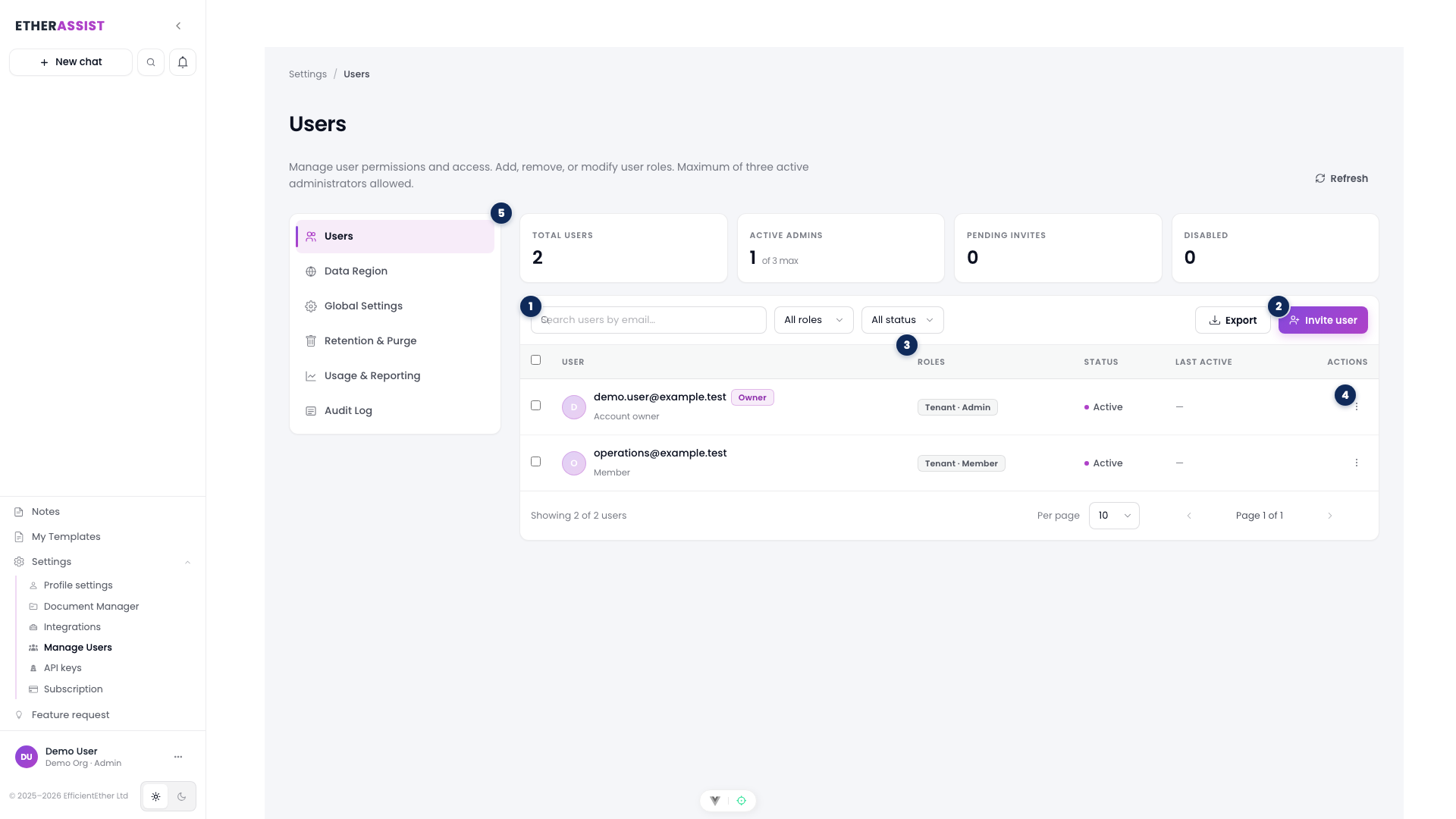
The numbered pins show the main areas of the Manage Users page.
| Pin | Area | Use it to |
|---|---|---|
| 1 | Search and filters | Find a user by email, role, or status. |
| 2 | Invite user | Add a new user to the organisation. |
| 3 | Roles column | Confirm whether the user is an administrator, owner, or member. |
| 4 | Row actions | Open the available controls for that user. |
| 5 | Administration navigation | Move between Users, Data Region, Global Settings, Retention & Purge, Usage & Reporting, and Audit Log. |
- Open Administration.
- Select Manage Users.
- Review active, invited, and disabled users.
- Use search or filters to find the user.
Add a user
- Select Invite user.
- Enter the user's email address.
- Choose the appropriate role.
- Confirm any quota or access impact.
- Send the invitation.
Expected result: the user receives an invitation and can sign in with the invited account. If the user was added while already signed in, ask them to sign out and sign back in to refresh access.
Tips
- Use least-privilege roles for new users.
- Remove or disable access promptly when a user leaves the organisation.
- Confirm the user's email address matches the identity provider account they will use.
Troubleshooting
| Issue | What to check |
|---|---|
| User says access is pending | Confirm membership, role, subscription state, and ask them to sign out and back in. |
| Invitation was not received | Confirm the email address and whether the user can sign in directly. |
| Role change is not visible | Ask the user to refresh their session by signing out and back in. |
| Report download is unavailable | Confirm administrator permissions and subscription status. |