
Manage users
Administrators use Manage Users to control who can access EtherAssist and what each user can do.
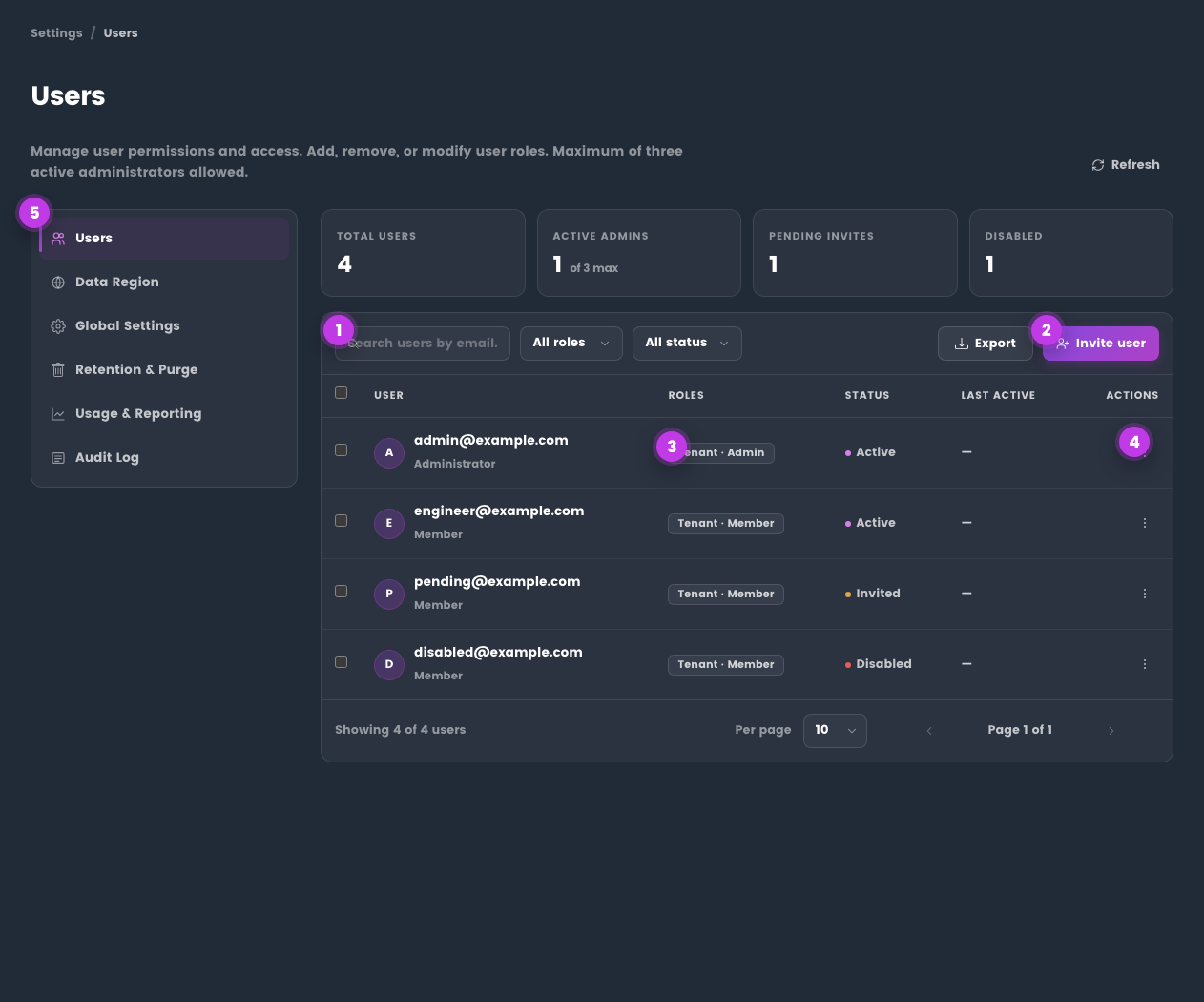
The numbered pins show the user search and filters, invite action, tenant role badges, row actions, and administration sections.
Before you begin
- Sign in with an administrator account.
- Confirm the user's correct email address and organisation.
- Check billing or subscription impact before adding users where seats or quotas apply.
User lifecycle
| Task | Purpose |
|---|---|
| Invite user | Sends an invitation so a new user can join the organisation. |
| Resend invite | Helps pending users who did not receive the original invitation. |
| Change role | Promotes or demotes administrative access. |
| Block user | Temporarily prevents access without deleting the account. |
| Delete user | Removes the user from the organisation when no longer required. |
Add a user
- Open Administration.
- Go to Manage Users.
- Enter the user's email address.
- Send the invitation.
- Ask the user to sign in after accepting the invite.
If access was granted while the user was already signed in, ask them to sign out and sign back in so the account context refreshes.
Expected result: the invited user appears in the user list and can access EtherAssist after accepting the invite and refreshing their session.
Change a user's role or access
- Open Administration → Manage Users.
- Find the user.
- Open the user actions or edit panel.
- Change the role, status, quota, topic access, or user-level controls.
- Save the change.
- Ask the user to sign out and sign back in if the change affects access.
Expected result: the user's next session reflects the updated role and policy settings.
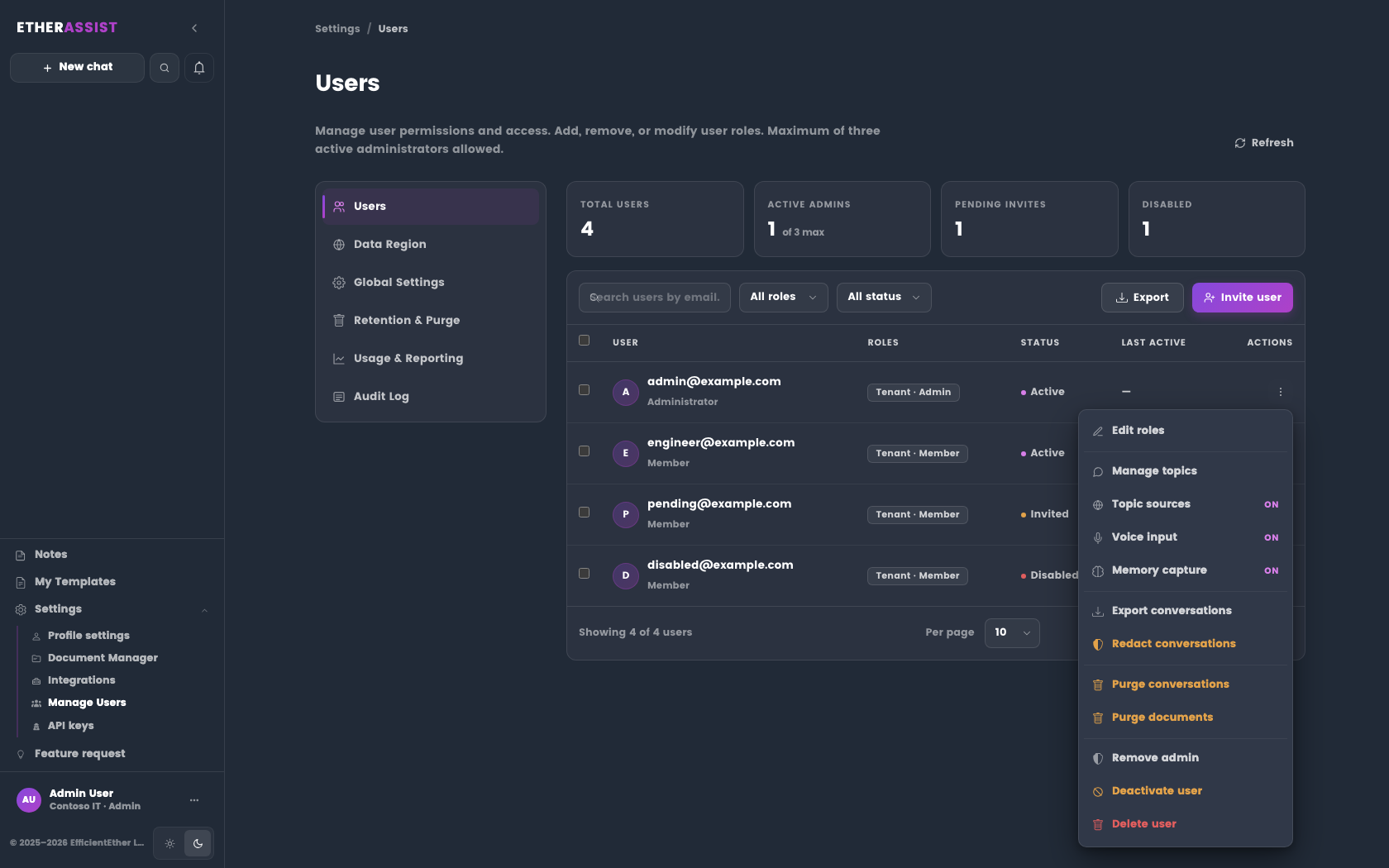
Per-user controls
Depending on plan and policy, administrators can control topic-source access, Microsoft image use, voice input, memory, redaction, role, and quota settings for individual users.
Billing note
Billing behaviour depends on the active subscription and commercial agreement. Check the subscription page or billing contact before making billing commitments to users.
Tips
- Keep changes small and verify the result before updating more users or settings.
- Check role, subscription, and tenant policy when a feature is not visible.
Troubleshooting
| Issue | What to check |
|---|---|
| User cannot see the tenant | Confirm they accepted the invite with the expected email address. |
| Role change is not visible | Ask the user to sign out and sign back in. |
| Topic is missing | Check user topic visibility and tenant topic policy. |
| Invite email was not received | Confirm the email address, spam filtering, and whether the user can sign in directly. |