
Personas
Personas are reusable context presets. Use them when you regularly want EtherAssist to answer in a particular style, role, or operating context.
Location: Settings → Personas
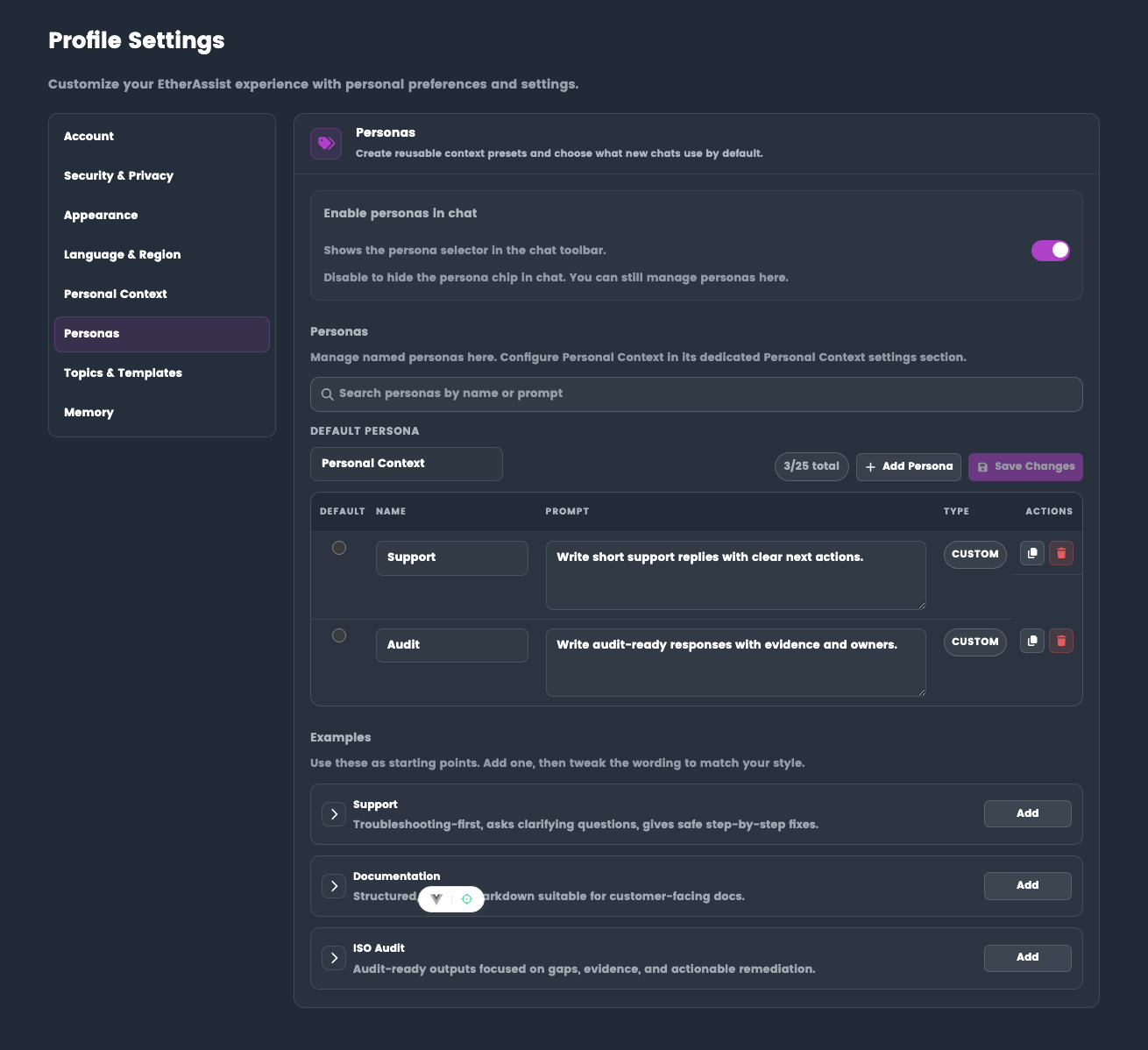
Before you begin
- Sign in to EtherAssist.
- Decide which repeated role, tone, or review style you want to save.
- Keep persona prompts customer-safe and avoid adding secrets or sensitive records.
Enable personas in chat
Turn on Enable personas in chat to show the persona selector in the chat toolbar.
Turning this off hides the selector in chat. You can still manage personas from Settings.
Create a persona
- Open Settings → Personas.
- Select Add Persona.
- Enter a short name.
- Add the prompt that describes how EtherAssist should respond.
- Save your changes.
Expected result: the persona appears in the personas table and can be selected in chat when personas are enabled.
Example persona prompt:
Keep responses concise, technical, and practical. Prefer step-by-step remediation guidance and call out assumptions.
Set a default persona
Use Default Persona to choose what new chats use by default.
You can select:
- Personal Context to use your Personal Context settings;
- Blank to start without a persona;
- one of your custom personas.
Manage personas
From the personas table, you can:
- search personas by name or prompt;
- edit persona names and prompts;
- duplicate a persona;
- delete a persona;
- save all pending changes.
Use a persona in chat
- Enable personas in chat.
- Open a new or existing chat.
- Open the persona selector.
- Choose the persona for the current task.
- Send the request.
Expected result: EtherAssist applies the selected persona to the current response.
Tip: Use personas for tone and role. Use topics for specialist grounding. They solve different problems.
Relationship to Personal Context
Use Personal Context for broad account-level context. Use Personas for named presets that you can switch between.
See Personal Context.
Tips
- Use short persona names that are easy to recognise in chat.
- Keep persona prompts focused on style, role, and output expectations.
- Use topics for specialist grounding and personas for response style or role.
Troubleshooting
| Issue | What to check |
|---|---|
| Persona selector is missing in chat | Enable personas in chat from Settings. |
| Persona does not apply | Confirm the persona is selected before sending the request. |
| Too many personas are hard to manage | Delete or archive old presets and keep only reusable ones. |