
Partner Portal
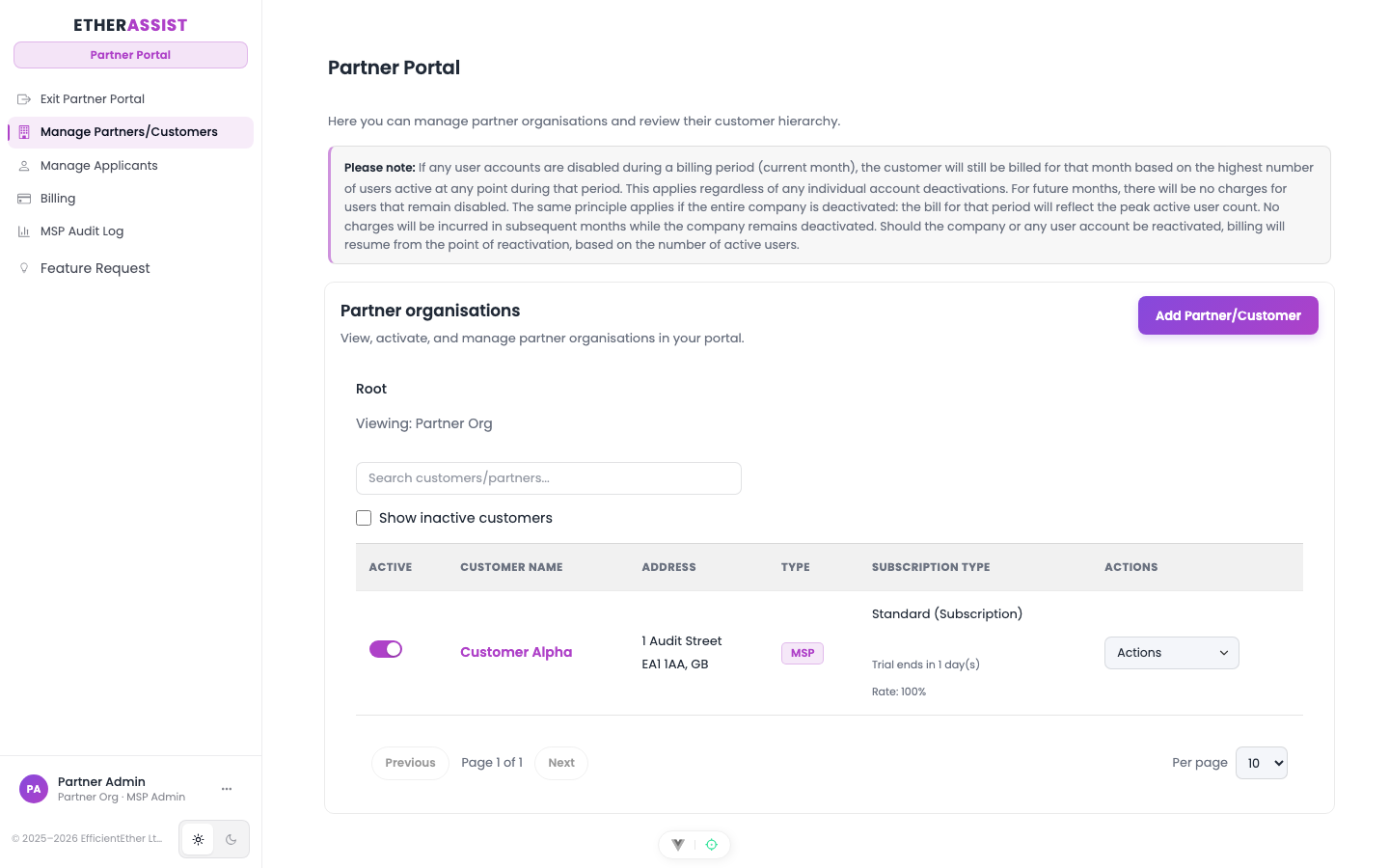
The Partner Portal gives MSPs and channel partners a central place to manage customer EtherAssist organisations.
Before you begin
- Sign in with an MSP or partner role.
- Confirm the partner or customer hierarchy level before taking action.
- Keep customer and billing information within authorised partner channels.
What partners can do
| Area | Purpose |
|---|---|
| Companies | View partner and customer organisations. |
| Add Partner/Customer | Create child partner or customer records where allowed. |
| Drill-down hierarchy | Move through channel, partner, and customer levels. |
| Customer actions | Open a customer, impersonate where permitted, manage users, and review details. |
| Billing | Review invoices and billing history. |
| Applications | Review partner programme applications when enabled. |
| Audit log | Review partner-level administrative activity. |
Customer management workflow
- Open Partner Portal.
- Select the customer or drill into the hierarchy.
- Review the customer details and subscription state.
- Use customer actions for user management, billing review, or support.
- Return to the hierarchy when finished.
Expected result: you can view and manage the selected customer within your partner scope.
Add a partner or customer
- Open Partner Portal.
- Confirm you are at the correct hierarchy level.
- Select Add Partner/Customer or Add Customer, depending on your role and current context.
- Enter the organisation details.
- Save the record.
- Open the new organisation and confirm its status.
Expected result: the organisation appears in the partner hierarchy and is available for permitted management actions.
Review billing
- Open Partner Portal.
- Select the partner or customer.
- Open Billing.
- Review invoices, billing history, and subscription state.
- Export or share billing information only with authorised contacts.
Expected result: billing information is reviewed in the correct customer or partner context.
Access controls
Partner Portal access is role-based. Actions may be hidden when the signed-in user does not have the required MSP role or when the selected organisation is outside the user's channel scope.
Tip: If a customer or action is missing, first confirm the current hierarchy level and signed-in account before assuming the record is absent.
Tips
- If a customer or action is missing, confirm the current hierarchy level and signed-in account before assuming the record is absent.
- Use the existing drill-down table instead of creating duplicate customer records.
- Ask users to sign out and back in after a partner role change.
Troubleshooting
| Issue | What to check |
|---|---|
| Partner Portal is not visible | Confirm the signed-in user has an MSP or partner role. |
| Customer is missing | Confirm the hierarchy level, partner scope, and whether the customer was created under a different parent. |
| Billing or actions are hidden | Confirm the selected organisation and role permissions. |